

Sales Credit Notes
Manage the outbound credit notes you issue to customers to correct or reverse a sales invoice.
A credit note corrects or reverses an invoice you previously issued — for example for a return, a discount, or a pricing correction. The Sales Credit Notes page lists the credit notes you issue to your customers. Open it from Sales → Credit Notes in the sidebar.
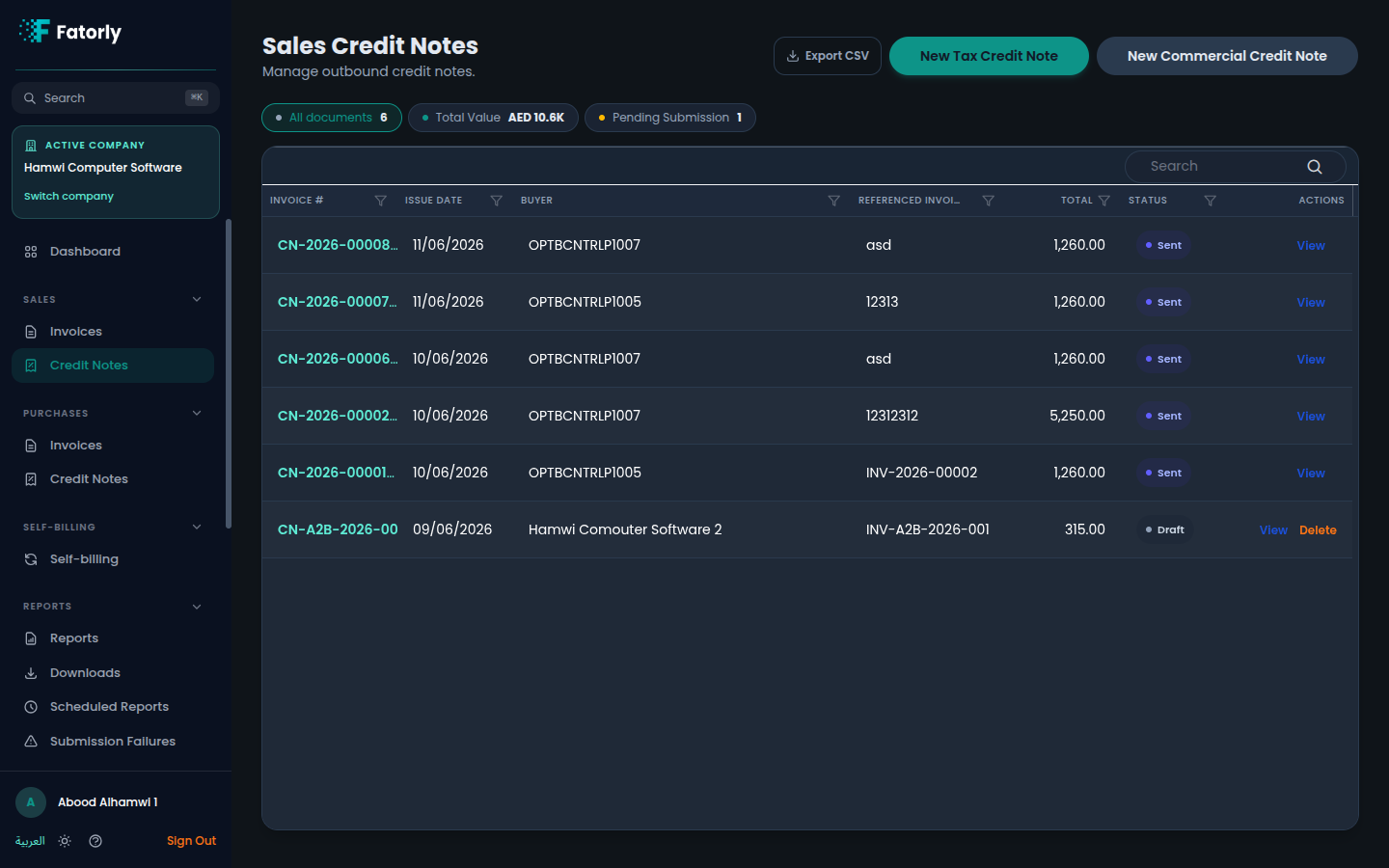
The list
Each row is one credit note. The grid has these columns:
- Invoice # — the credit note number from your
number series (for example
CN-2026-00008). Select it to open the document. - Issue Date — the date the credit note was issued.
- Buyer — the customer the credit note was issued to.
- Referenced Invoice — the preceding sales invoice the credit note relates
to (for example
INV-2026-00002). - Total — the value being credited in
AED. - Status — a badge such as Draft or Sent.
- Actions — see Row actions below.
Above the grid, the All documents chip shows the full count, Total Value
shows the combined credited value in AED, and Pending Submission filters to
credit notes not yet submitted. Use Search to find a document and select a
column header to sort.
Create a credit note
Two actions in the top-right open the editor:
- New Tax Credit Note — a VAT credit note.
- New Commercial Credit Note — a commercial (non-tax) credit note.
A credit note is filled in the same way as an invoice — choose the customer, add line items, and set VAT groups. Record the referenced invoice so the credit note is correctly tied to the document it corrects.
Tip
Issue a credit note rather than editing an invoice you have already submitted. Credit note amounts reduce the customer's outstanding balance.
Row actions
- View is always available and opens the document view, where you can review and submit the credit note over Peppol.
- Delete appears on Draft credit notes that have not yet been submitted.
Related
- Create or Edit an Invoice — the editor the New buttons open.
- View an Invoice — review and submit a document.
- Sales Invoices — the invoices a credit note references.
- Customers — the buyers you issue credit notes to.