

Business Central
Send FTA-compliant UAE e-invoices from Microsoft Dynamics 365 Business Central with the Fatorly - Business Central Integration extension.
The Fatorly - Business Central Integration extension connects Microsoft Dynamics 365 Business Central to Fatorly. Built on the standard Business Central E-Document framework, it turns your sales invoices and credit memos into PINT AE compliant e-invoices and delivers them through Fatorly — without changing how you post documents.
Note
The extension is available from Microsoft AppSource. Search for Fatorly - Business Central Integration or use the Get it from Microsoft link on the AppSource listing.
How it works
- You post sales invoices and credit memos in Business Central as usual.
- The extension generates a PINT AE e-invoice for each posted document.
- E-documents are delivered to Fatorly over HTTPS using your API key.
- Fatorly validates, signs, and submits each invoice to the FTA, and reports the status back to Business Central.
No new workflows to learn — the extension adds the UAE-specific fields and automation on top of the standard E-Document pages you already have.
Requirements
- Microsoft Dynamics 365 Business Central online
- The E-Document Core capability (included in Business Central)
- An active Fatorly account with an API key
- Your company linked to the FTA (see FTA Linking)
Step 1: Get your Fatorly API key
Open API Keys
In Fatorly, go to Settings → API Keys.
Create a key
Create a new API key and copy it. You will paste it into Business Central in the next step. Treat the key like a password — it grants full access to your Fatorly company.
Step 2: Install the extension
Install Fatorly - Business Central Integration from AppSource into your Business Central environment (AppSource apps are installed by an admin through Extension Management). The extension is deployed per environment; repeat for each environment you want to use.
Step 3: Configure the Fatorly connection
Search for and open Fatorly Connection Setup.
| Field | What to enter |
|---|---|
| Service URL | The Fatorly integration endpoint for your tenant. Production: https://integration.fatorly.com. Sandbox: https://integration.sandbox.fatorly.com. Trailing slashes are removed automatically. |
| API Key | The key from Step 1. It is stored in isolated storage inside Business Central — it is never written to the database in plain text and cannot be read back after saving. |
| Enable Posting Validation | Turns on pre-posting validation against Fatorly (recommended). |
| Block Posting When Validation Unavailable | If enabled (default), posting is blocked when the validation service cannot be reached, so you never post a document that will fail e-invoicing later. Disable only if you want posting to continue offline. |
| Default Purchase G/L Account | The G/L account used as the default line account when purchase e-invoices are received without a match. Must allow direct posting. |
| Enable Master Data Sync | Enables the background sync that pushes customers, vendors, items, and payment methods to Fatorly. |
Tip
Run the connection setup in a sandbox environment first with the sandbox Service URL, then switch the URL and key to production when you go live.
Step 4: Create the E-Document Service
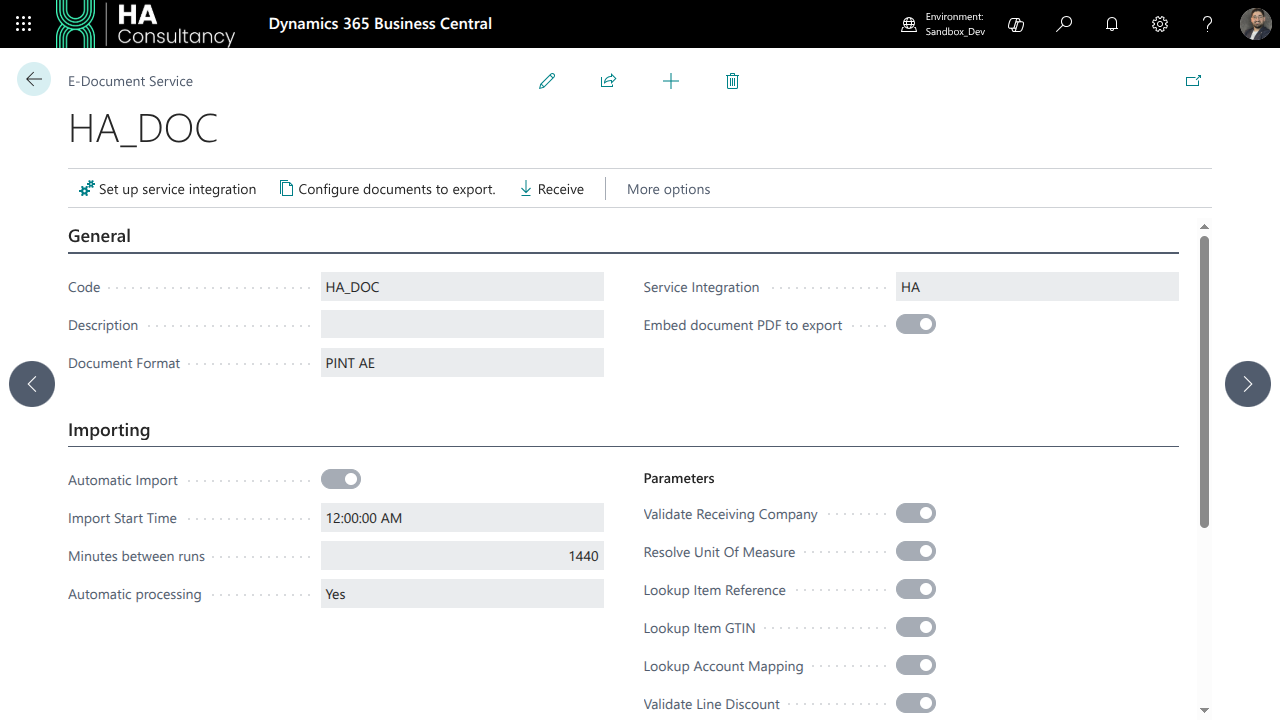
Search for and open E-Document Services and create a new service (for
example, code FATORLY-UAE).
| Field | Value |
|---|---|
| Service Integration V2 | Select HA (Fatorly). |
| Document Format | Automatically set to PINT AE when you select the HA integration. |
| Embed PDF in export | Enabled — the visual PDF is embedded in the e-invoice payload, as required by the FTA programme. |
Keep the remaining E-Document Service settings (batch mode, delivery) at their defaults unless support advises otherwise.
Step 5: Complete the PINT AE master data
The extension adds UAE-specific fields to the standard cards. Fill them in before issuing invoices — the data flows into every e-invoice you send.
Company Information
| Field | Purpose |
|---|---|
| Company Legal Form | The legal form of your company, reported on the invoice. |
| Fatorly Id | Filled by the master data sync — links the BC record to its Fatorly counterpart. |
| Name Arabic | The Arabic company name, if you want it on the invoice. |
Customers and vendors
| Field | Purpose |
|---|---|
| Fatorly Id | Set by the sync — do not edit manually. |
| Name Arabic | The Arabic trading name reported on the invoice. |
Items
| Field | Purpose |
|---|---|
| Fatorly Id | Set by the sync. |
| Name Arabic | Arabic item name. |
| Service Accounting Code | Your internal service/GS accounting classification for the item. |
Payment methods
| Field | Purpose |
|---|---|
| UNCL4461 Code | The UN/CEFACT UNCL 4461 payment-means code for the payment method (for example 30 for credit transfer, 48 for card). |
VAT Posting Setup
| Field | Purpose |
|---|---|
| PINT VAT Category | The PINT AE VAT category for this VAT combination (for example Standard rated, Zero rated, Exempt). |
| Exemption Reason Code | Required for exempt or zero-rated categories — the reason code reported to the FTA. |
| Goods Nature Code | The nature-of-goods code for supply classification. |
Warning
Invoices whose lines resolve to a VAT posting setup without a PINT VAT Category will fail validation. Map every VAT posting setup you use for UAE sales before going live.
Step 6: Add document-level details
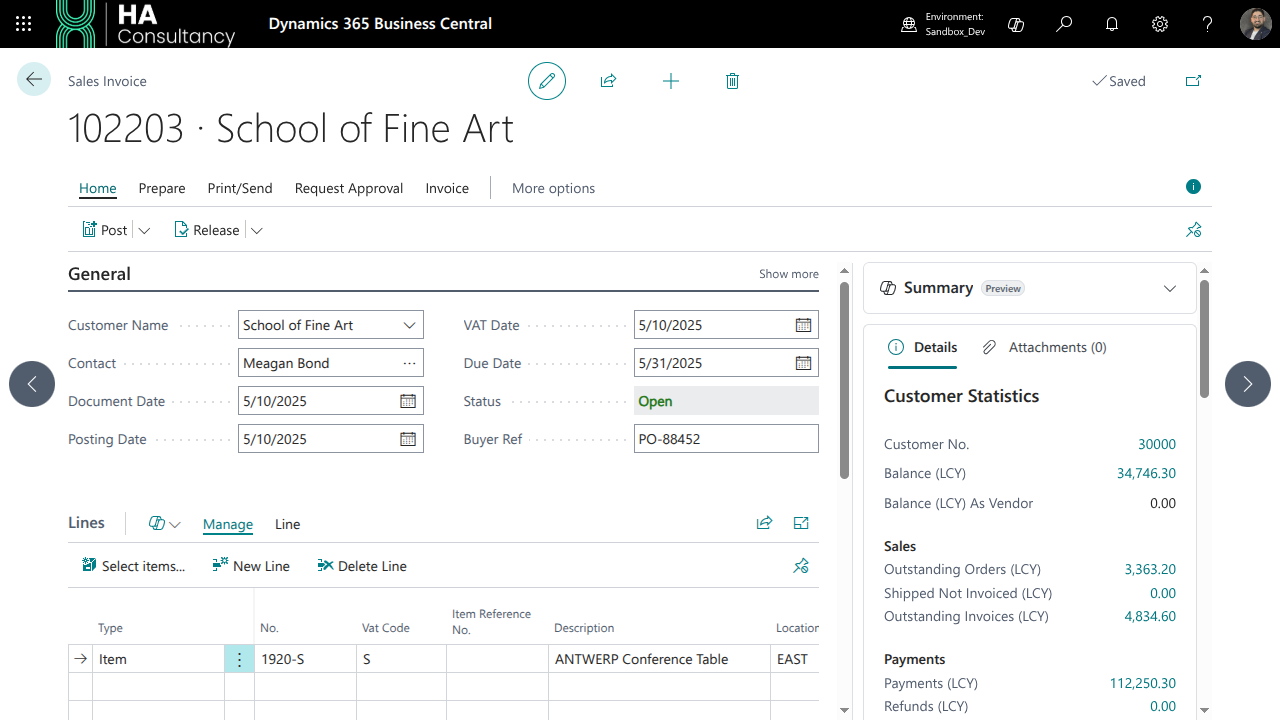
The extension adds these fields to sales documents:
| Field | Where | Purpose |
|---|---|---|
| Buyer Ref | General FastTab | The buyer's reference (PO number) — printed on the invoice and reported in BuyerReference. |
| PINT AE Transaction Type | Sales header | The PINT AE transaction type (for example standard supply, credit note reason). Defaults sensibly per document type. |
| Delivery Party | Shipment Method FastTab | The delivery/receiving party when it differs from the bill-to customer. |
Credit memos carry the same fields so reversal documents are reported with the correct transaction type.
Sending invoices
- Create and post a sales invoice or credit memo as usual.
- The document appears on the E-Documents page, generated in PINT AE and sent to Fatorly according to your E-Document Service setup.
- Track progress on the E-Documents page: the Service Status shows each document's Fatorly state (draft, sent, accepted).
Note
The embed PDF used for the e-invoice is rendered from your standard document report layout. Configure Report Layouts and document sending profiles as you would for email invoices.
Purchase e-invoices
When a vendor sends you an e-invoice, the extension receives it through the E-Document framework and creates a purchase invoice in Business Central:
- Lines without a matching G/L or item mapping land on the Default Purchase G/L Account from Fatorly Connection Setup.
- The received PINT AE data (seller details, VAT categories) is preserved so your input VAT reporting stays accurate.
- Open received documents from the E-Documents page, complete them, and post them as normal.
Failed submissions and recovery
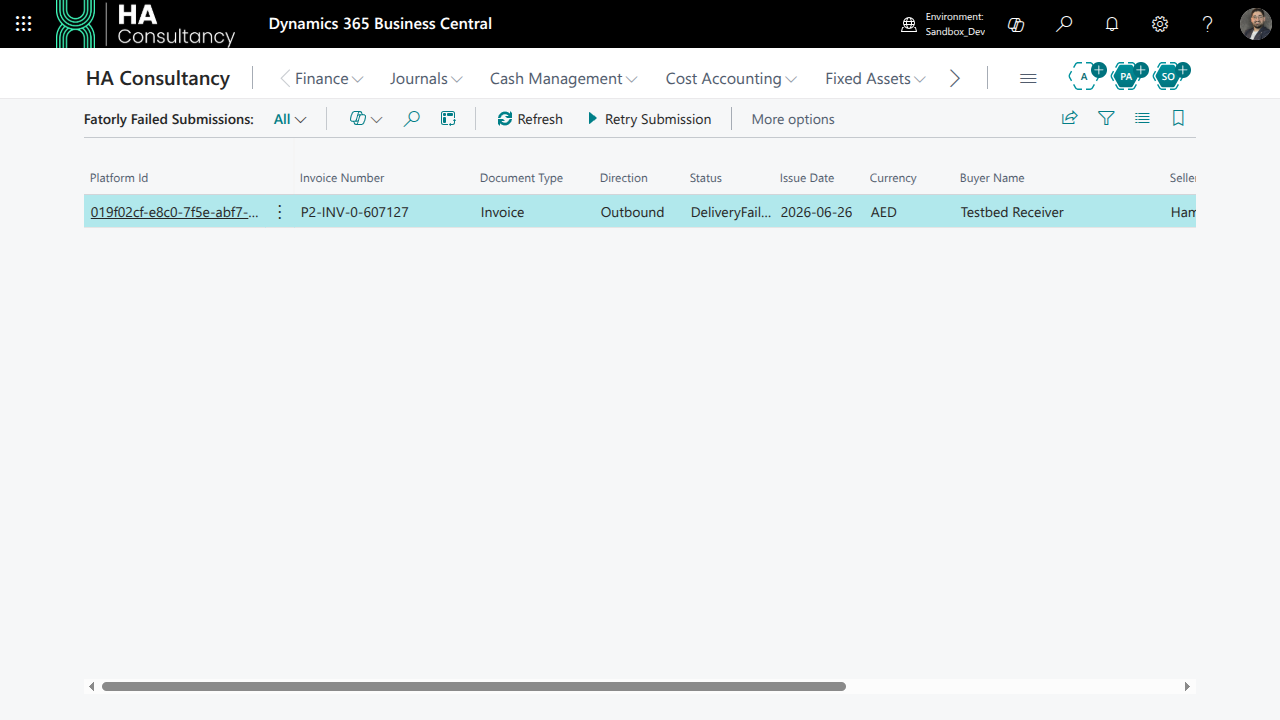
If a document cannot be delivered — for example a buyer TRN failed validation — it is listed on the Fatorly Failed Submissions page with the exact failure reason reported by the platform.
Open Failed Submissions
From the E-Documents page choose Failed Submissions, or search for Fatorly Failed Submissions. Each row shows the platform id, invoice number, direction, status, issue date, currency, and buyer/seller.
Fix the data
The failure reason tells you what to correct — typically missing master data fields, an invalid TRN, or a missing VAT category. Fix it on the customer, vendor, item, or document.
Retry
Select the row and choose Retry Submission to re-send immediately, or Refresh to reload the list from Fatorly. Use Open e-document to jump to the linked E-Document.
Cancelling a Fatorly draft
If a document was created on Fatorly but not yet submitted for delivery, you can delete the platform draft: on the E-Documents page, select the document and choose Cancel Fatorly Draft. This clears the platform link so the next send creates a fresh document. Documents already submitted for delivery cannot be cancelled this way — the Business Central document itself is never affected.
Troubleshooting
| Symptom | Cause and fix |
|---|---|
| "Service URL is not configured" when posting | Open Fatorly Connection Setup and set the Service URL. |
| "API key is not configured" | Paste your Fatorly API key in Fatorly Connection Setup. If you replaced the key in Fatorly, update it here too. |
| Posting blocked with validation errors | A document fails PINT AE validation (see the listed reason). Complete the flagged fields — this is the Block Posting When Validation Unavailable safeguard working as intended. |
| Invoice stuck in draft on Fatorly | A draft exists but was not submitted. Use Cancel Fatorly Draft to clear the link and resend, or contact support if it should have been submitted. |
| Document on Failed Submissions with TRN error | The buyer's TRN is missing or invalid — correct it on the customer card, then Retry Submission. |
| Missing VAT category error | Map PINT VAT Category (and exemption reason where needed) on the VAT posting setup used by the document lines. |
Support
Full platform documentation starts at the documentation home. For connector issues, contact us through support with the platform id shown on the E-Document or Failed Submissions page — it lets us trace the exact document on Fatorly.