

Create or Edit an Invoice
A step-by-step walkthrough of the redesigned editor for invoices and credit notes.
The invoice editor is where you create and edit documents — tax invoices, commercial invoices, and credit notes. It calculates VAT and totals live as you type and validates each document against the UAE PINT (PINT AE) rules, so problems surface before you submit.
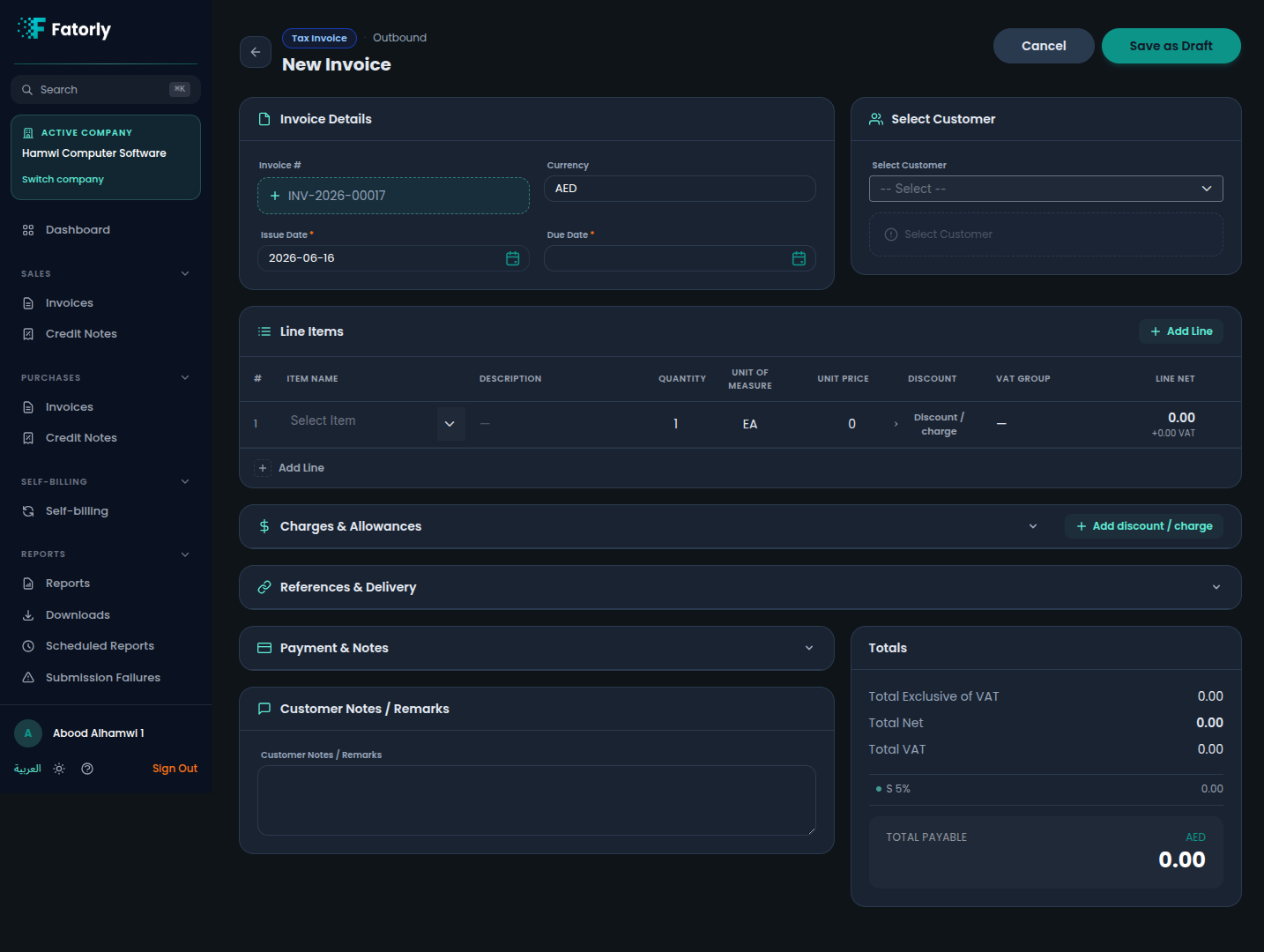
Start a new document
You can launch the editor from several places:
- Dashboard → Quick Actions (e.g. New Tax Invoice).
- Sales → New Tax Invoice / New Commercial Invoice.
- Sales Credit Notes → New Credit Note.
The header bar at the top shows the document category (for example Tax Invoice) and its direction (Outbound), alongside the Cancel and Save as Draft buttons.
Fill in the document
Work top to bottom. The first three areas — Invoice Details, Select Customer, and Line Items — are always visible. The three sections below them are optional and collapsible.
Set the invoice details
In the Invoice Details card, the Invoice # is assigned automatically
from your number series (for example
INV-2026-00017) and is read-only. Set the Currency (defaults to AED),
the Issue Date (defaults to today), and the Due Date. If VAT becomes
due on a date different from the issue date, use the optional VAT Point Date
date picker (BT-7; not available on credit notes).
Select the customer
In the Select Customer card, search the dropdown and pick the buyer. The card then shows the chosen customer's name, TRN, and address. Manage these records in Customers.
Add line items
In the Line Items table, choose Add Line for each product or service.
- Pick an Item to prefill the name, Unit of Measure, Unit Price, and the item's default tax category and classification (set these up in Items). You can also type a free Description.
- Set the Quantity and adjust the Unit Price if needed. Use the Discount / charge button on a line to add a per-line allowance or charge.
- Choose the VAT Group:
S(5%),Z(0%),E(0%),O(0%),AE(0%), orL(0%). New lines default to the 5% standard group (S). - When the VAT Group is
E(Exempt), an Exemption Reason field appears and is required. - Expand the line to set Item Type (
GGoods,SServices, orBBoth). This reveals the Service Accounting Code (SAC) field for service lines, and the Goods Nature Code for reverse-charge (AE) goods lines.
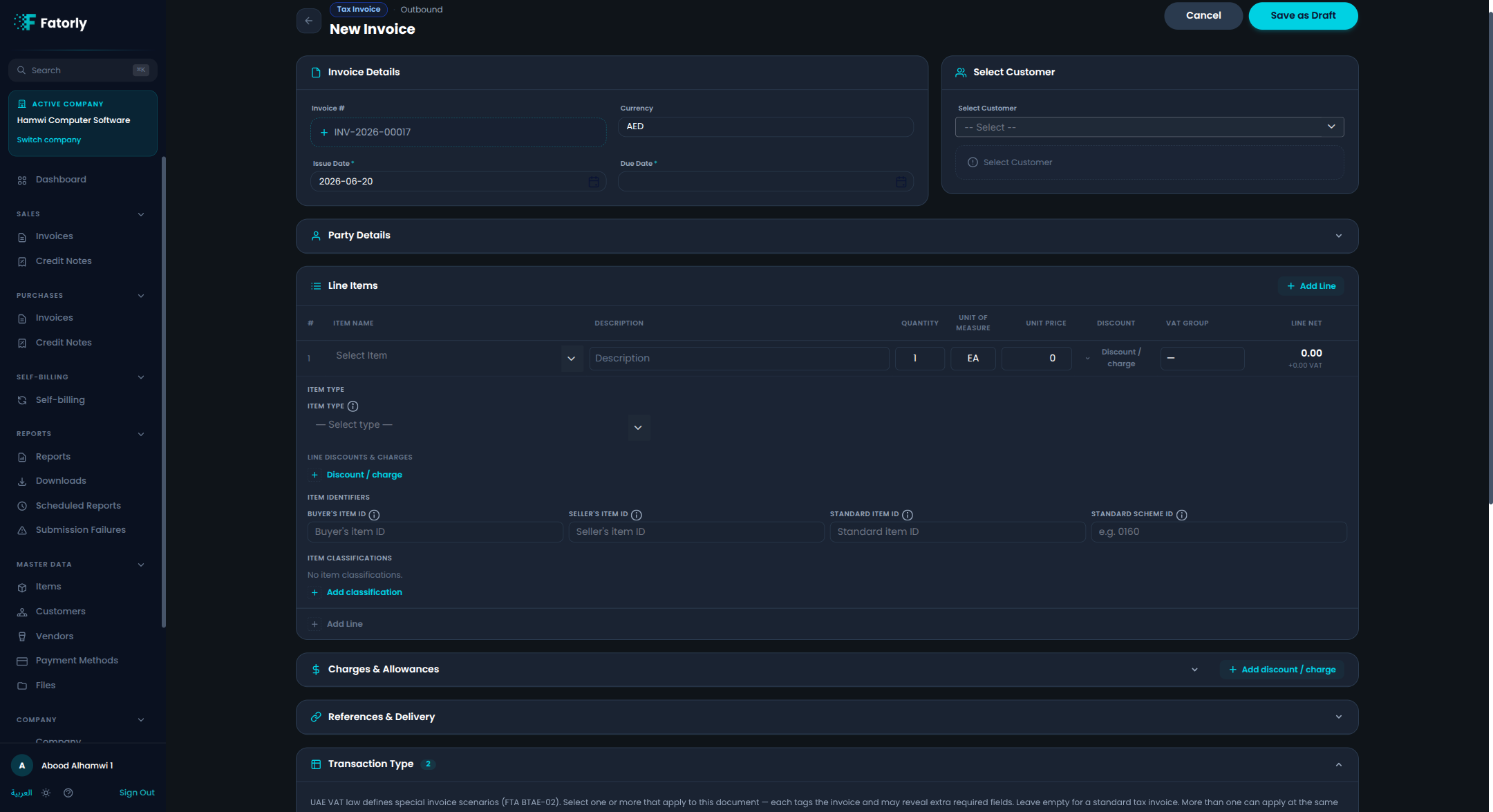
The Line Net is calculated for you as quantity × unit price, minus allowances plus charges.
Optional — Special UAE transaction types
Expand the Transaction Type section if this invoice involves one or more UAE special scenarios — for example a Free Trade Zone supply, a Disclosed Agent Billing arrangement, a Summary Invoice, or an Export. Tick the relevant scenarios; the form reveals the additional fields each one legally requires (such as Beneficiary ID, Principal ID, or a Billing Period). Leave the section empty for a standard tax invoice.
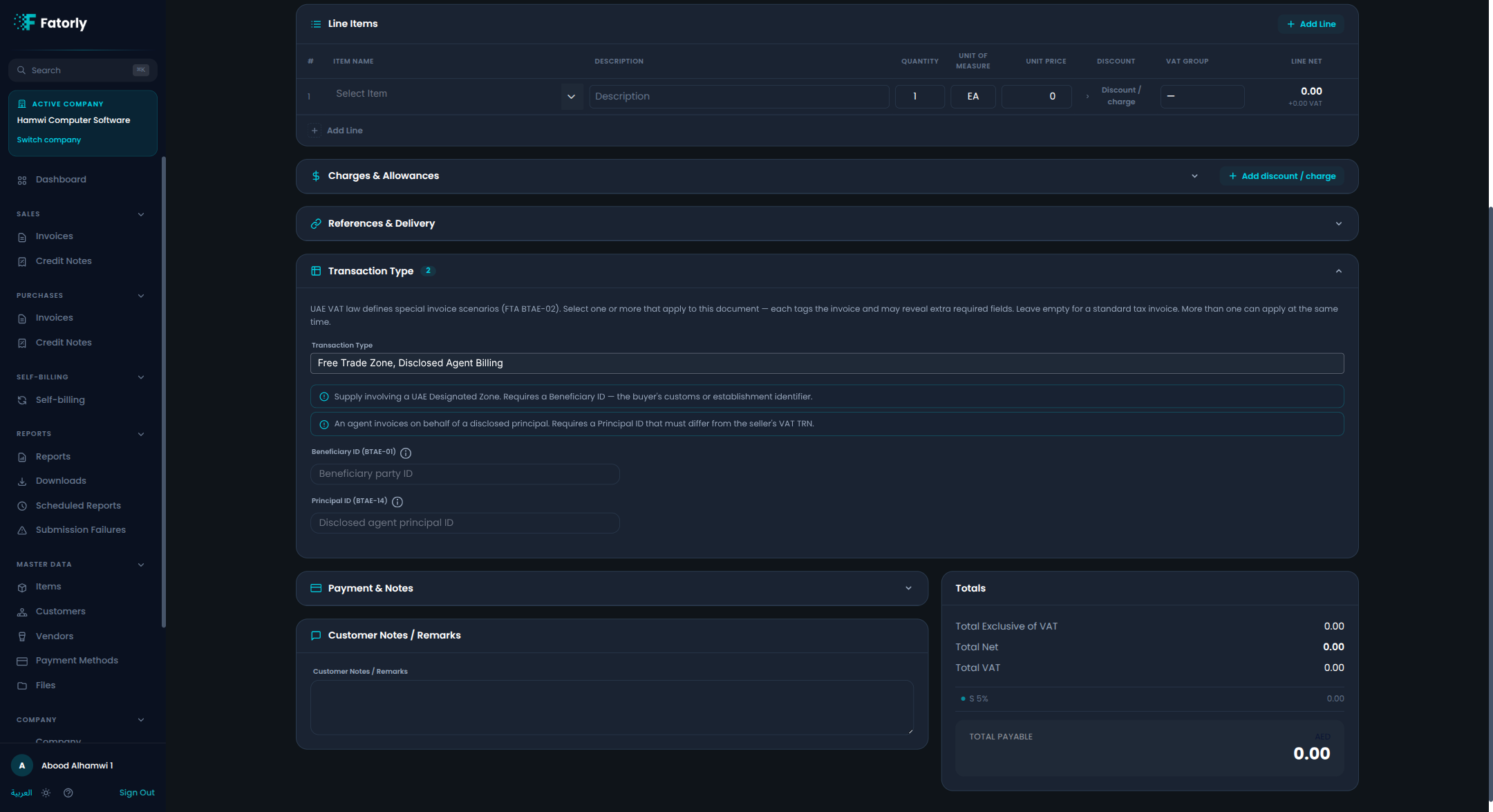
Optional — Charges & Allowances
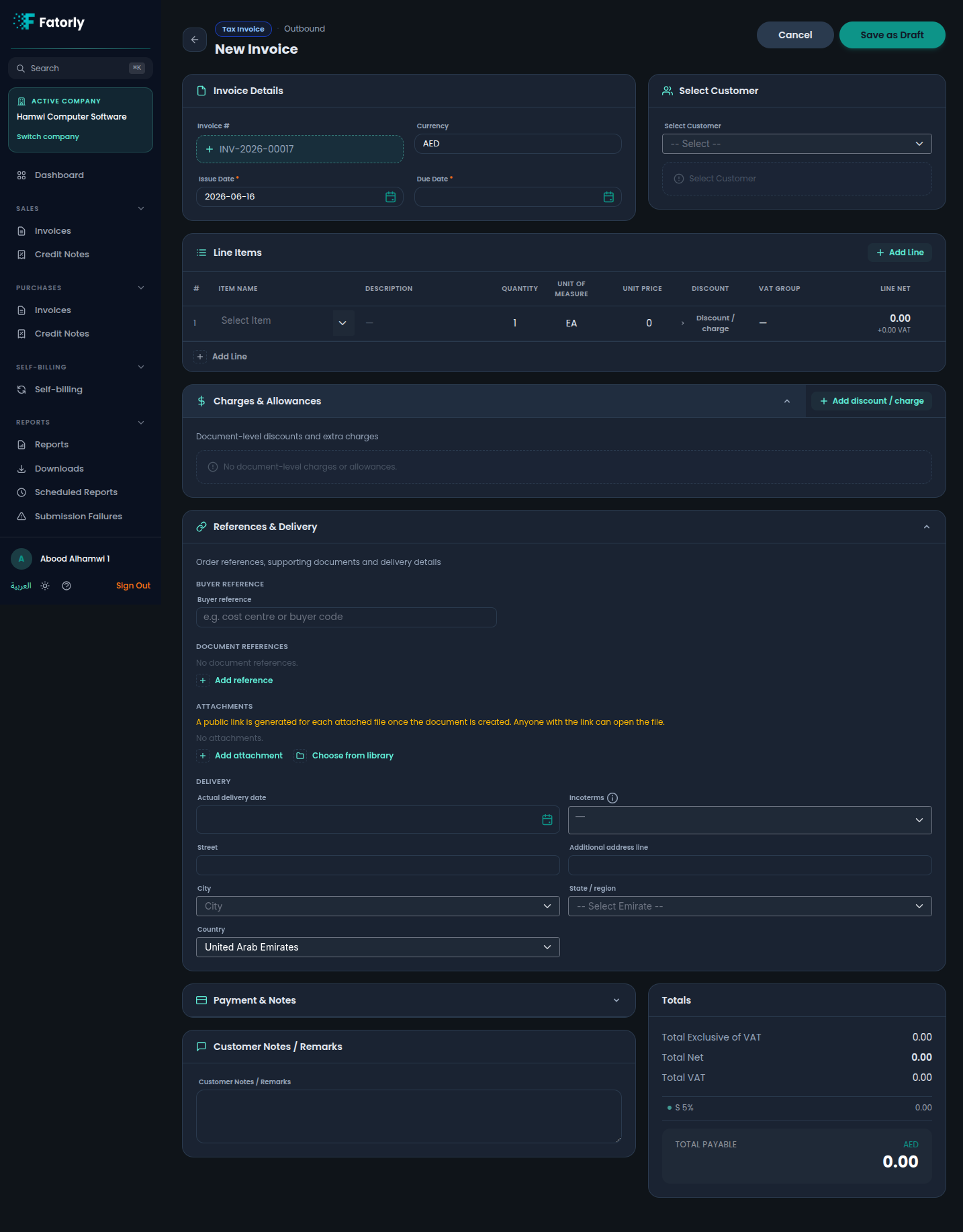
Expand Charges & Allowances to add discounts or charges that apply to the whole document rather than a single line. Choose Add discount / charge, set whether it is an allowance or a charge, the amount, the tax category, and a reason.
Optional — References & Delivery
Expand References & Delivery to record a buyer reference; purchase order, sales order, contract, project, despatch, or receipt references; attachments (from your Files library, an upload, or a URL); and delivery details — address, actual delivery date, and Incoterms. The delivery Country, Emirate, and City are dropdowns.
Optional — Payment & Notes
Expand Payment & Notes to choose a Payment Method and Payment Terms, and to add Customer Notes / Remarks that appear on the document. You can also enter a Bank Account / IBAN (required for credit-transfer payments) and a Prepaid Amount (BT-113) if the buyer has already made an advance payment.
Review the totals
The Totals panel updates live and is read-only: Total Exclusive of
VAT, Total Net, Total VAT broken down per category (for example
S 5%), and Total Payable in the document currency (AED).
Save as draft
Choose Save as Draft. The document is saved and can be reviewed, then submitted from the invoice view.
Tip
The three optional sections — Charges & Allowances, References & Delivery, and Payment & Notes — are collapsible. Each shows a filled-count badge so you can see at a glance how much it contains, and a section auto-expands if it holds a field with a validation error. Fields have visible labels, and non-obvious ones carry an info "i" tooltip.
Note
This page is a walkthrough. For the full list of every field — whether it is required and the values it accepts — see the Invoice Field Reference.
Related
- Items — the catalog that prefills line items.
- Customers — the buyers you select.
- Number Series — where invoice numbers come from.
- Files — the library you attach documents from.
- View an Invoice — what happens after you save.