

Import Invoices from Excel
Create many sales invoices at once from a single Excel workbook, fix any issues on a review screen, then commit them as drafts.
When you have many invoices to enter, you can import them in bulk from a single
Excel (.xlsx) workbook instead of typing each one in the
editor. Fatorly parses the file, checks every
invoice against the UAE PINT (PINT AE) rules, and lets you correct anything
on a review screen before saving. Imported invoices are created as drafts —
nothing is submitted to Peppol automatically.
Note
Import creates outbound sales invoices as drafts. You review and submit them afterwards exactly like any other draft, from the invoice view.
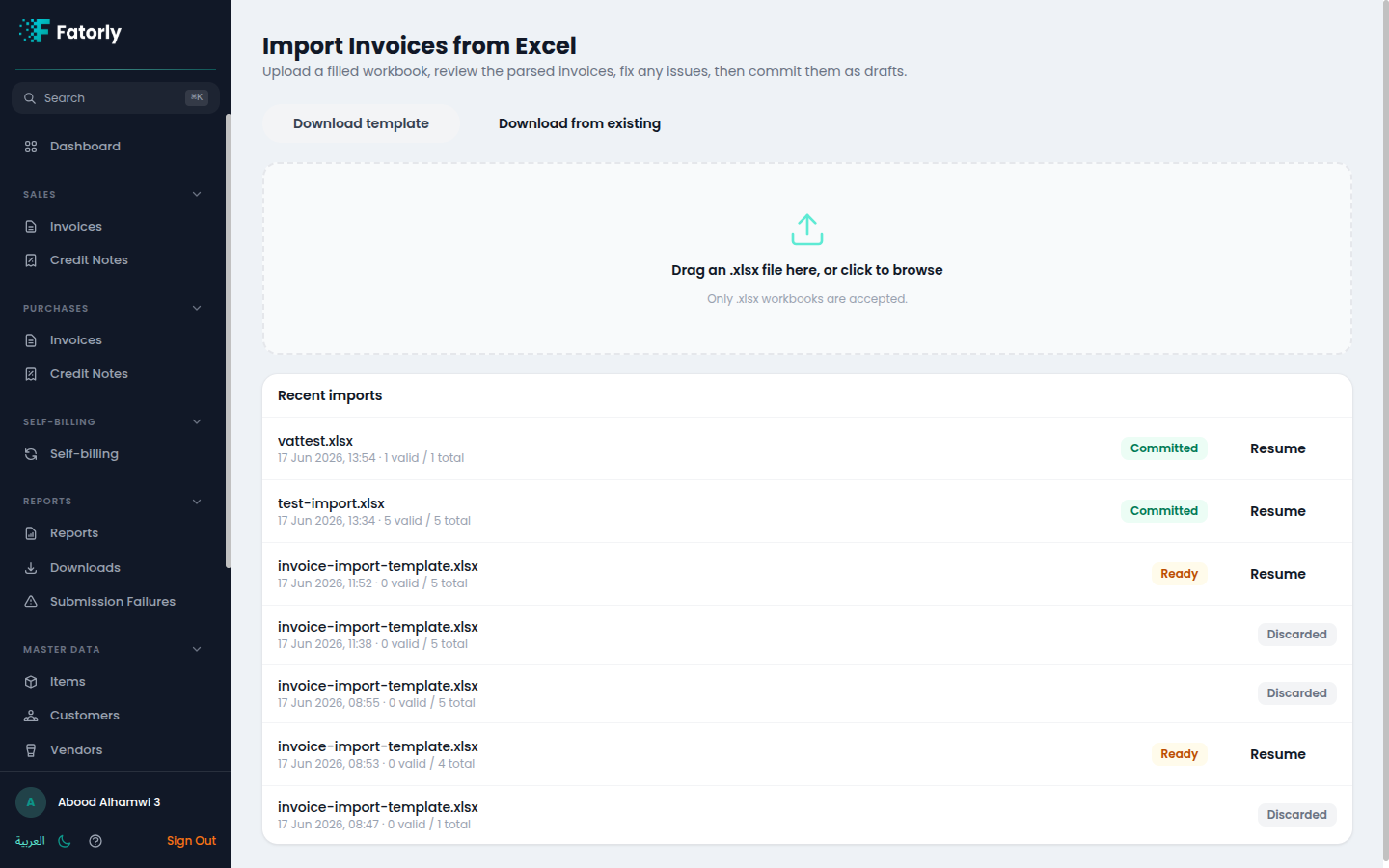
Open the import screen
Go to Sales → Invoices and choose Import from Excel, or open the
command palette (⌘K / Ctrl K) and search for Import. You land on
Import Invoices from Excel.
Download the template
Start from the supplied template so your columns match what Fatorly expects:
- Download template — a blank workbook with the recognised column headers and dropdowns for tax category and unit of measure.
- Download from existing — the same layout, pre-filled from your current invoices, so you can copy an existing invoice as a starting point.
Fill in the workbook
The template has a single sheet named Invoices with one row per line
item. Rows that share the same InvoiceNumber are grouped into one invoice
with several lines, so repeat the header values (dates, buyer, …) on each of an
invoice's rows.
Tip
Column order doesn't matter — Fatorly matches columns by their header name, and unknown columns are ignored. Leave a cell blank to accept its default.
Columns
| Column | Meaning |
|---|---|
InvoiceNumber | Groups the rows of one invoice. Must be unique — see Duplicate numbers. |
IssueDate, DueDate | Document dates (YYYY-MM-DD). |
BuyerName | The customer. Matched to an existing customer — see Matching the buyer. |
BuyerTrn | Buyer tax registration number (preferred way to match the customer). |
BuyerCountry, BuyerCity, BuyerAddress | Buyer address (country defaults to AE). |
BuyerElectronicAddress | Buyer Peppol participant ID, if the buyer isn't a saved customer. |
BuyerReference | Buyer's own reference. |
SupplierName, SupplierCountry | Optional — your own details are filled from your Company Profile on commit. |
PaymentMode, PaymentTerms, PaymentBankAccount | Payment details. |
Note | Customer notes / remarks. |
ItemName, ItemDescription | The line item. |
Quantity, UnitOfMeasure, UnitPrice | Line quantity, unit (defaults to EA), and price. |
TaxCategoryCode | S, Z, E, O, AE, or L (defaults to S). |
TaxRate | VAT percentage. Leave blank to default from the category — see Tax. |
TaxExemptionReason | Required when the category is exempt. |
SellersItemId, BuyersItemId, StandardItemId | Optional item identifiers. |
Upload and review
Drag the filled .xlsx onto the upload area (or click to browse). Fatorly scans
and parses the file in the background and then shows the review screen.
Each parsed invoice appears in a list with a status badge:
- Valid — passes all checks and is ready to commit.
- N issue(s) — has PINT AE problems to fix first.
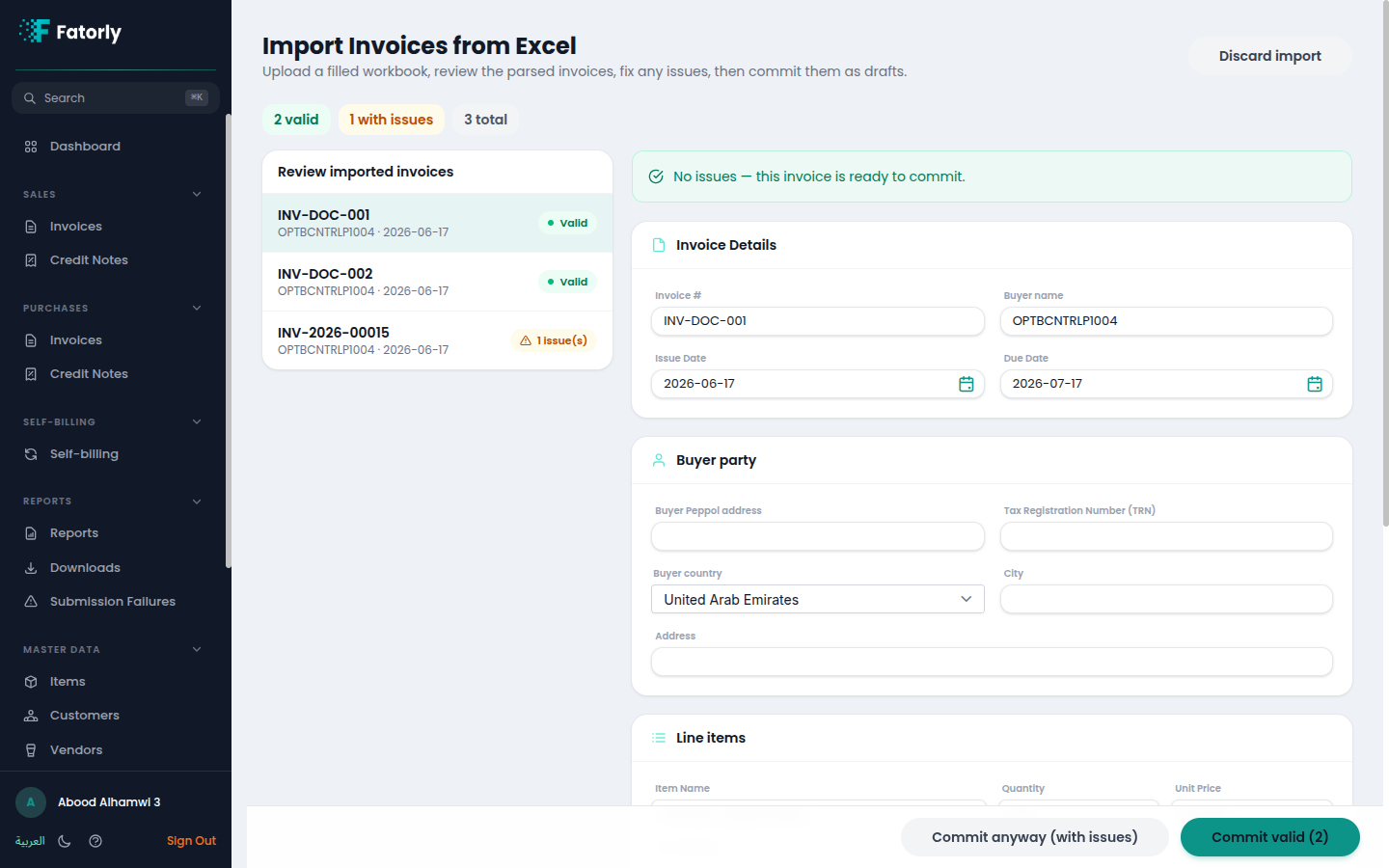
Select an invoice to see its issues and edit its fields — invoice number, dates, the buyer party, and the line items (item, quantity, price, tax category and rate). Choose Save & re-validate to re-check that invoice. The header shows a running count of valid / with issues / total.
Tip
You don't have to fix everything in Excel and re-upload. Most corrections — buyer details, dates, tax — can be made directly on the review screen.
How the buyer is matched
Fatorly links each invoice's buyer to one of your saved customers so it can reuse the customer's Peppol participant ID and details:
- First by
BuyerTrn— an exact match on a customer's TRN. - Then by
BuyerName— an exact (case-insensitive) match on a customer's name.
If neither matches, fill the buyer's BuyerElectronicAddress (Peppol
participant ID) on the row or on the review screen.
Tax and VAT groups
Leave TaxRate blank to let the category set it: the standard category
S defaults to 5%, and every other category (Z, E, O, AE, L)
defaults to 0%. Each line's VAT group is set from its
TaxCategoryCode, so a committed import shows its VAT exactly like an invoice you
create by hand.
Duplicate invoice numbers
If an invoice's number already belongs to an existing invoice, that row is flagged An invoice with this number already exists and cannot be committed — even with Commit anyway. Give it a new number to import it.
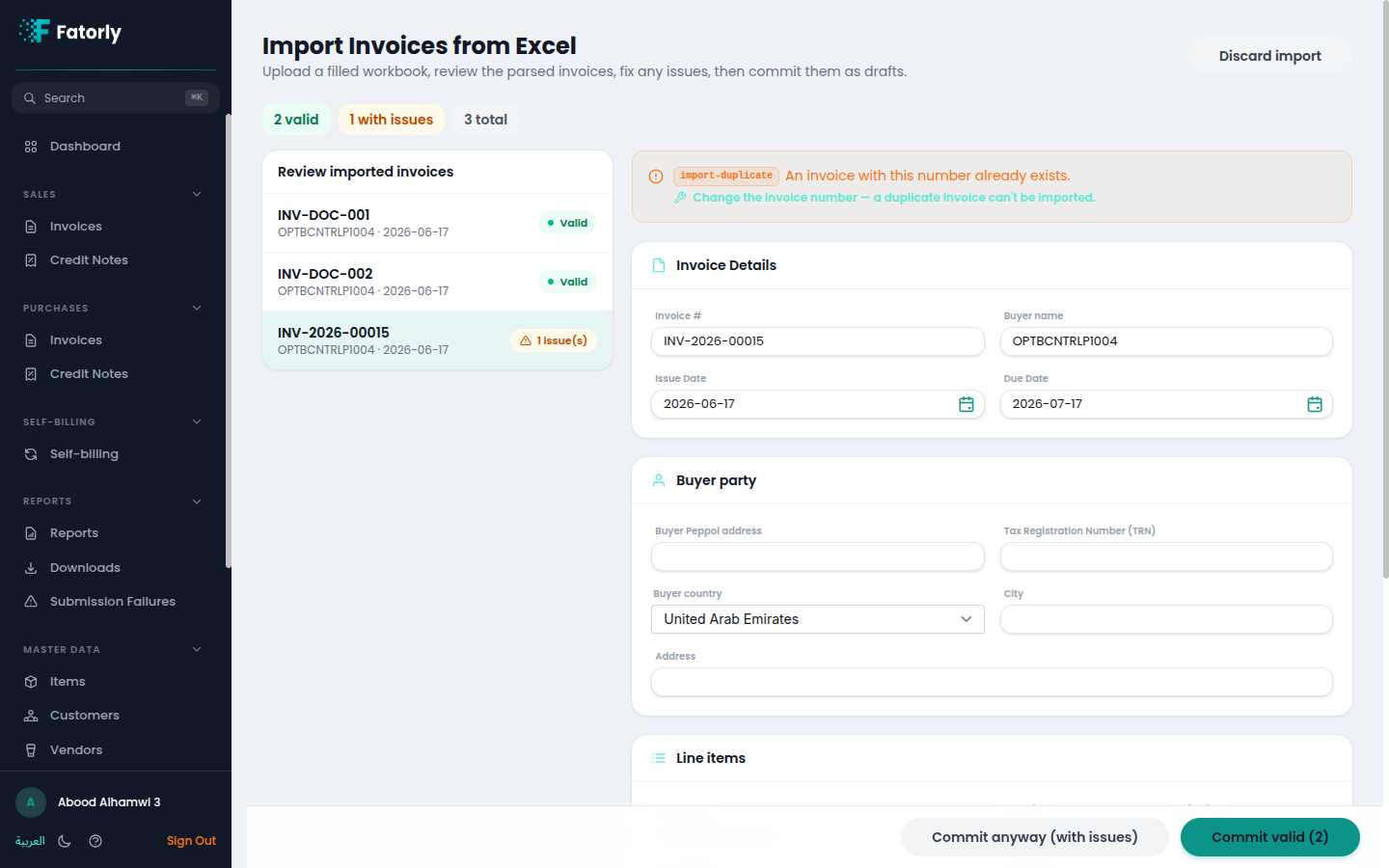
Commit
When you're happy with the batch:
- Commit valid (N) — creates drafts from the valid invoices only.
- Commit anyway (with issues) — also commits the invoices that still have issues. This is safe: drafts that aren't valid simply can't be submitted yet. Duplicate-number rows are still refused.
Committed invoices become drafts in Sales → Invoices. A partial commit leaves the batch open so you can keep fixing the rest.
Recent imports
The upload screen lists your recent imports — file name, when it ran, the valid/total counts, and its status (Parsing, Ready, Committed, or Discarded). Choose Resume to reopen a batch you left earlier, so closing the page never loses an upload you haven't committed yet.
What's accepted
Note
Only .xlsx workbooks are accepted — macro-enabled files (.xlsm, .xlsb) are
rejected, and the file is virus-scanned on upload. Cell formulas are not
evaluated; their last saved value is used (and flagged). The sheet is limited to
a generous row count, well beyond a normal batch.
Related
- Create or Edit an Invoice — the manual editor.
- Invoice Field Reference — every field and its rules.
- Customers — the buyers an import links to.
- Items — item defaults you can mirror in the template.
- Sales Invoices — where committed drafts appear.
- View an Invoice — review and submit a draft.