

Switching Companies
Choose which company to work in and move between companies you have access to.
If your account has access to more than one company, Fatorly lets you pick which one you're working in and switch between them at any time. The company you select determines the invoices, customers, and settings you see.
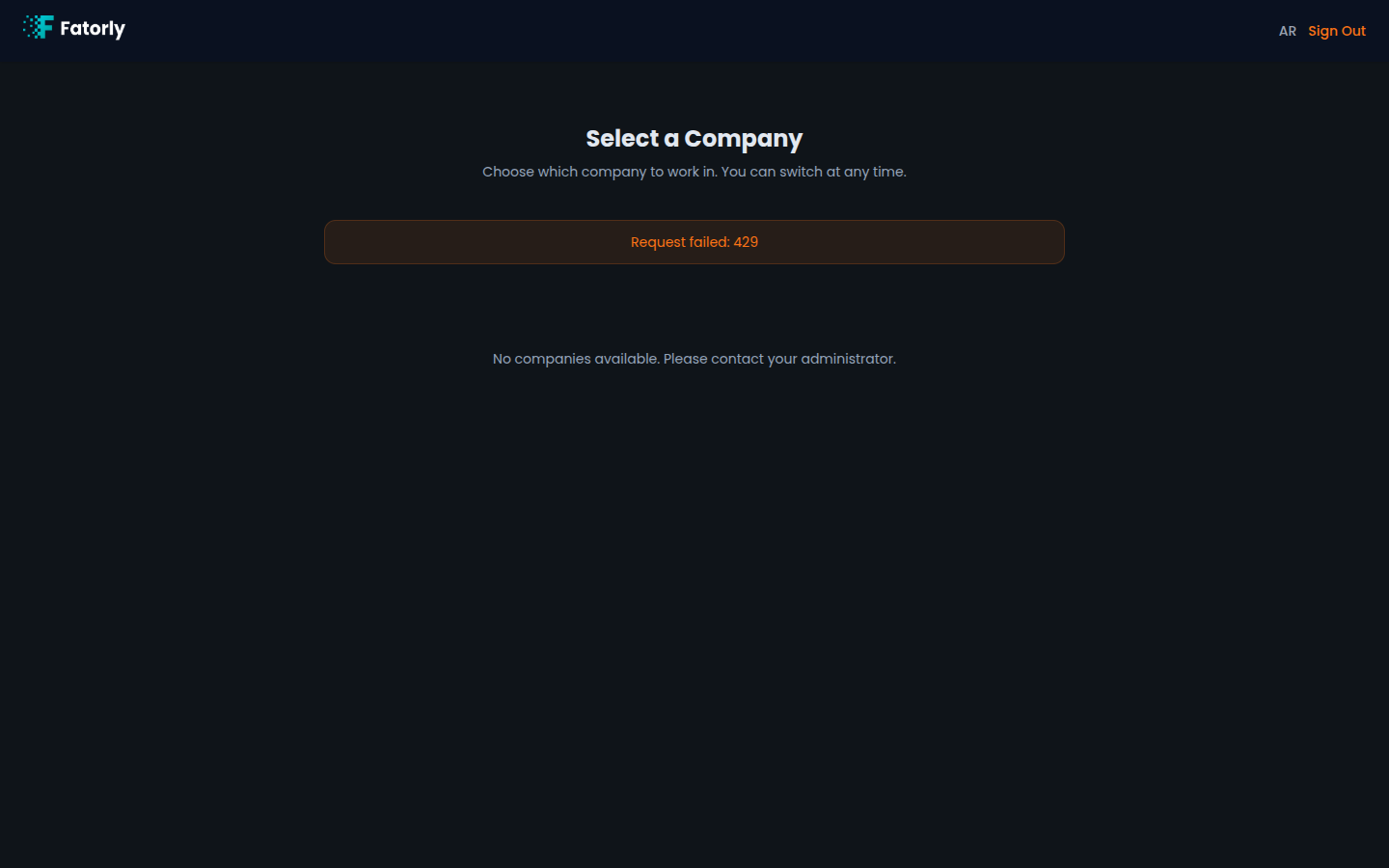
The company selector
After you sign in, users with access to multiple
companies land on the company selector (route /select-company) instead of
going straight to the dashboard.
Review your companies
Each company you can access is shown as a card with its name.
Choose a company
Select the company you want to work in.
Continue to the dashboard
Fatorly opens that company's dashboard. Everything you do from here — invoices, customers, reports — applies to the company you chose.
Note
If your account has access to a single company, you skip this screen and go straight to the dashboard after signing in.
Switching company later
You don't have to sign out to change companies. Use the Switch company control in the sidebar to return to the selector and pick a different company.
Tip
The company you're currently working in is shown in the sidebar, so you always know which company your actions affect.
Adding a company
Select + Add a company on the selector to start setting up another company under your account. New companies complete onboarding to link with the FTA, just like your first one.
Related
- Sign In — where the selector appears.
- Dashboard — the home screen for the company you choose.
- Company Profile — settings for the active company.