> ## Documentation Index
> Fetch the complete documentation index at: https://docs.fatorly.com/llms.txt
> Use this file to discover all available pages before exploring further.
# Sales Invoices
> Manage your outbound tax and commercial invoices — the list, filters, and how to create a new document.
The **Sales Invoices** page lists the outbound invoices you issue to your
customers — both **tax invoices** and **commercial invoices** — and is where you
start a new one. Open it from **Sales → Invoices** in the sidebar.
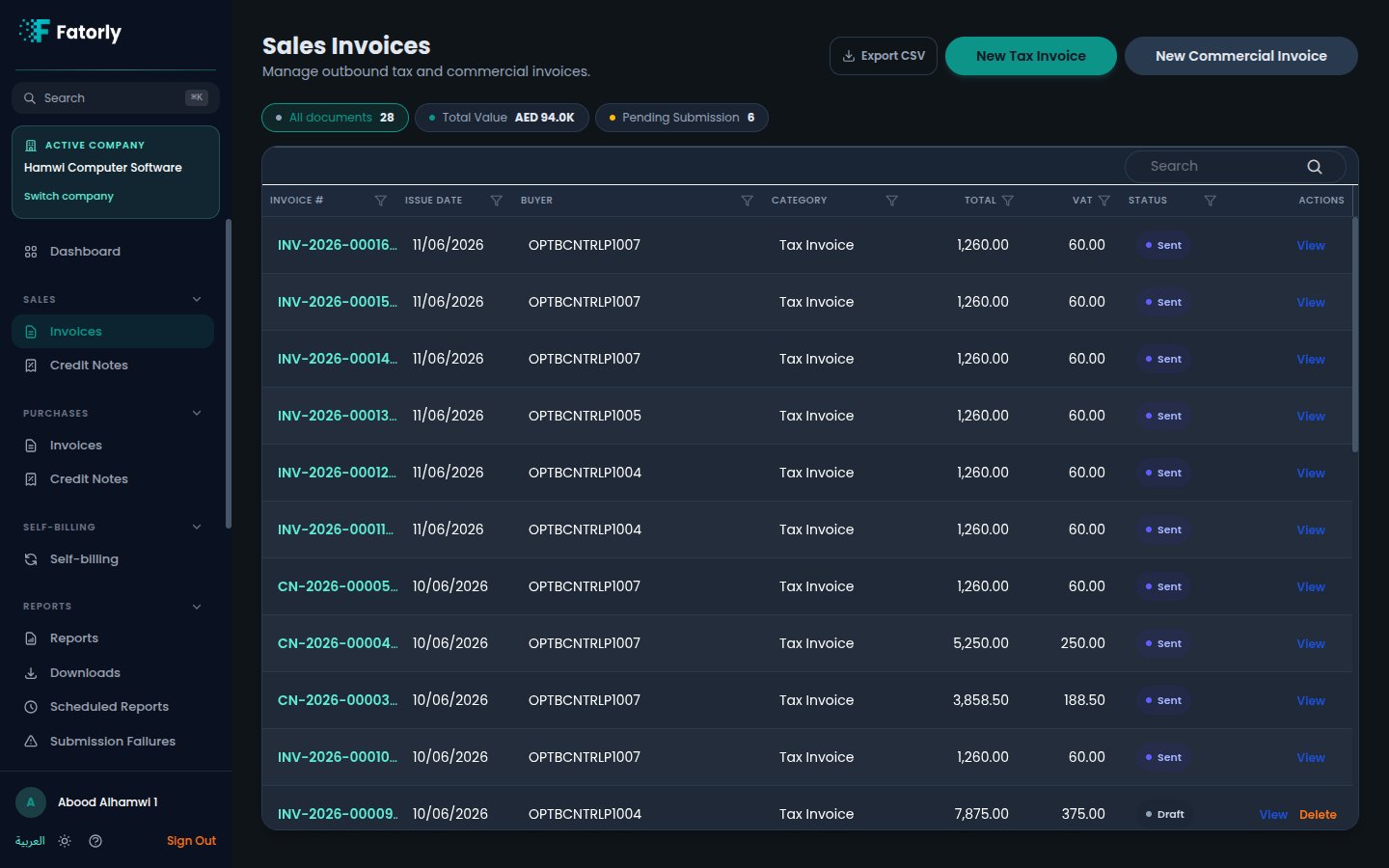 ## The list
Each row is one document. The grid has these columns:
* **Invoice #** — the document number from your
[number series](/en/settings/number-series) (for example `INV-2026-00016`).
Select it to open the document.
* **Issue Date** — the date the invoice was issued.
* **Buyer** — the customer the invoice was issued to.
* **Category** — *Tax Invoice* or *Commercial Invoice*.
* **Total** — the total payable in `AED`.
* **VAT** — the VAT amount included in the total.
* **Status** — a badge showing where the document is in its lifecycle, such as
**Draft** or **Sent**.
* **Actions** — see [Row actions](#row-actions) below.
Above the grid, summary chips let you filter and read totals at a glance:
* **All documents** — shows the full count and is selected by default.
* **Total Value** — the combined value of the listed invoices in `AED`.
* **Pending Submission** — select it to narrow the list to documents that have
not yet been submitted.
Use the **Search** box in the grid toolbar to find a document by number or
buyer, and select any column header to sort by it.
## Create a new invoice
Two actions in the top-right open the [invoice
editor](/en/invoicing/create-invoice):
* **New Tax Invoice** — a standard VAT tax invoice.
* **New Commercial Invoice** — a commercial (non-tax) invoice.
To create many invoices at once, choose **Import from Excel** and follow
[Import Invoices from Excel](/en/invoicing/import-invoices).
Use **Export CSV** in the top-right to download the current list — handy for
reconciliation or sharing with your accountant.
## Row actions
The **Actions** column adapts to the document's status:
* **View** is always available and opens the [invoice
view](/en/invoicing/view-invoice), where you can review the document and
submit it.
* **Delete** appears on **Draft** documents, which have not yet been submitted.
Once a document has been submitted (status **Sent**), it can no longer be
deleted. To reverse a sent invoice, issue a
[credit note](/en/sales/sales-credit-notes) instead.
## Related
* [Create or Edit an Invoice](/en/invoicing/create-invoice) — the editor the
*New* buttons open.
* [Import Invoices from Excel](/en/invoicing/import-invoices) — create many
invoices at once from a workbook.
* [View an Invoice](/en/invoicing/view-invoice) — review and submit a document.
* [Sales Credit Notes](/en/sales/sales-credit-notes) — reverse or correct a
sent invoice.
* [Customers](/en/master-data/customers) — the buyers you invoice.
## The list
Each row is one document. The grid has these columns:
* **Invoice #** — the document number from your
[number series](/en/settings/number-series) (for example `INV-2026-00016`).
Select it to open the document.
* **Issue Date** — the date the invoice was issued.
* **Buyer** — the customer the invoice was issued to.
* **Category** — *Tax Invoice* or *Commercial Invoice*.
* **Total** — the total payable in `AED`.
* **VAT** — the VAT amount included in the total.
* **Status** — a badge showing where the document is in its lifecycle, such as
**Draft** or **Sent**.
* **Actions** — see [Row actions](#row-actions) below.
Above the grid, summary chips let you filter and read totals at a glance:
* **All documents** — shows the full count and is selected by default.
* **Total Value** — the combined value of the listed invoices in `AED`.
* **Pending Submission** — select it to narrow the list to documents that have
not yet been submitted.
Use the **Search** box in the grid toolbar to find a document by number or
buyer, and select any column header to sort by it.
## Create a new invoice
Two actions in the top-right open the [invoice
editor](/en/invoicing/create-invoice):
* **New Tax Invoice** — a standard VAT tax invoice.
* **New Commercial Invoice** — a commercial (non-tax) invoice.
To create many invoices at once, choose **Import from Excel** and follow
[Import Invoices from Excel](/en/invoicing/import-invoices).
Use **Export CSV** in the top-right to download the current list — handy for
reconciliation or sharing with your accountant.
## Row actions
The **Actions** column adapts to the document's status:
* **View** is always available and opens the [invoice
view](/en/invoicing/view-invoice), where you can review the document and
submit it.
* **Delete** appears on **Draft** documents, which have not yet been submitted.
Once a document has been submitted (status **Sent**), it can no longer be
deleted. To reverse a sent invoice, issue a
[credit note](/en/sales/sales-credit-notes) instead.
## Related
* [Create or Edit an Invoice](/en/invoicing/create-invoice) — the editor the
*New* buttons open.
* [Import Invoices from Excel](/en/invoicing/import-invoices) — create many
invoices at once from a workbook.
* [View an Invoice](/en/invoicing/view-invoice) — review and submit a document.
* [Sales Credit Notes](/en/sales/sales-credit-notes) — reverse or correct a
sent invoice.
* [Customers](/en/master-data/customers) — the buyers you invoice.