> ## Documentation Index
> Fetch the complete documentation index at: https://docs.fatorly.com/llms.txt
> Use this file to discover all available pages before exploring further.
# Submission Failures
> Review invoices whose Peppol submission failed and retry them.
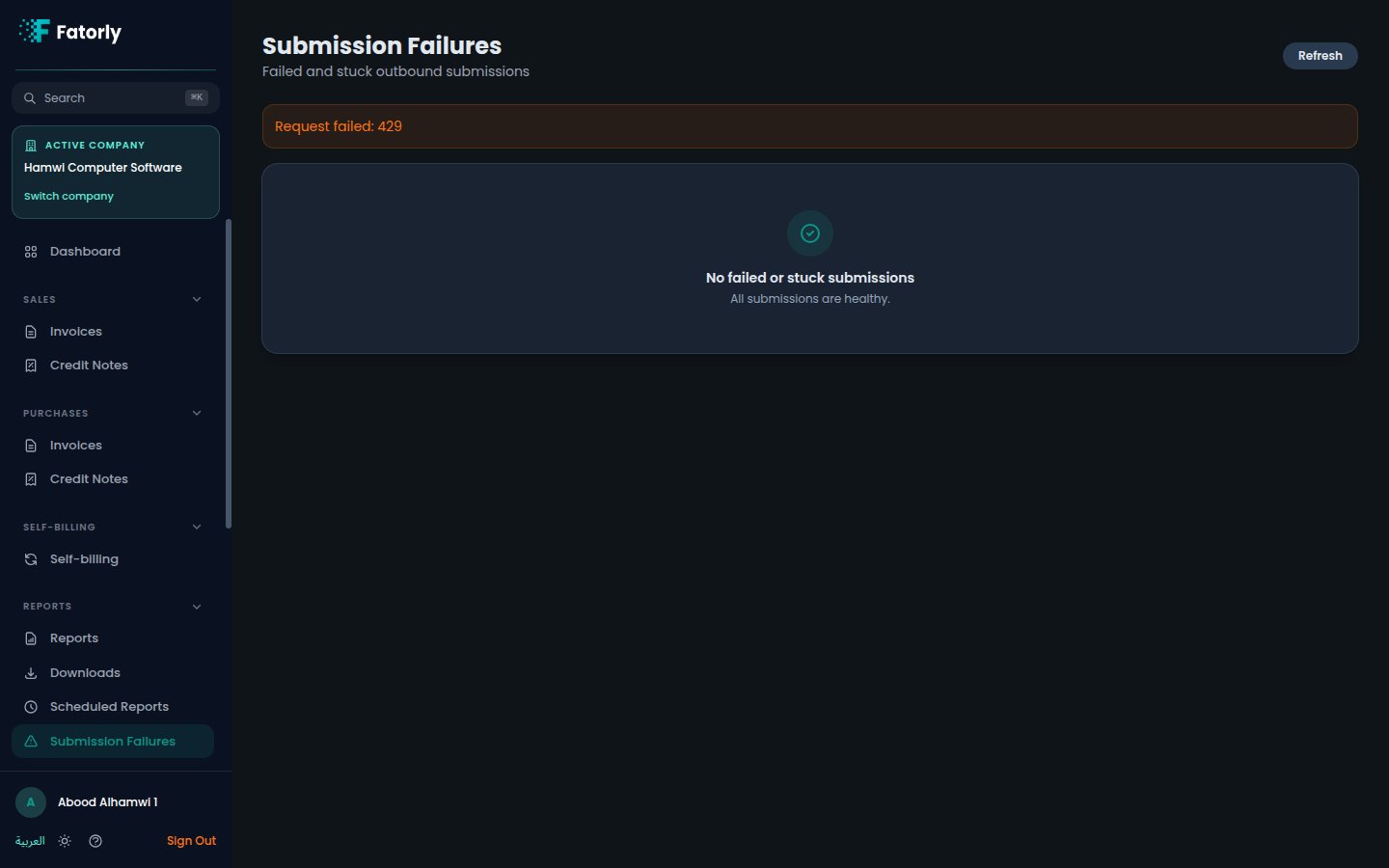
**Submission Failures** lists the invoices whose Peppol submission did not
succeed, so you can review what went wrong and retry them. Open it from
**Reports → Submission Failures** in the sidebar, at `/submissions/failed`.
 ## The list
Each row is an invoice whose submission failed. The list lets you see which
document is affected and identify the failures that still need attention, so you
can work through them.
## Review and retry
Select an invoice in the list to open its
[view](/en/invoicing/view-invoice) and read the details of the failure.
Review the reason the submission failed and correct anything the document
needs before trying again.
Retry the submission. If it succeeds, the invoice clears from the failures
list.
Submission Failures covers Peppol delivery problems specifically. For ordinary
report exports — such as receivables aging or a VAT summary — use the
[Reports hub](/en/reports/overview) instead.
## Related
* [View an Invoice](/en/invoicing/view-invoice) — review a document and submit
or resubmit it.
* [Reports](/en/reports/overview) — the report hub.
## The list
Each row is an invoice whose submission failed. The list lets you see which
document is affected and identify the failures that still need attention, so you
can work through them.
## Review and retry
Select an invoice in the list to open its
[view](/en/invoicing/view-invoice) and read the details of the failure.
Review the reason the submission failed and correct anything the document
needs before trying again.
Retry the submission. If it succeeds, the invoice clears from the failures
list.
Submission Failures covers Peppol delivery problems specifically. For ordinary
report exports — such as receivables aging or a VAT summary — use the
[Reports hub](/en/reports/overview) instead.
## Related
* [View an Invoice](/en/invoicing/view-invoice) — review a document and submit
or resubmit it.
* [Reports](/en/reports/overview) — the report hub.