> ## Documentation Index
> Fetch the complete documentation index at: https://docs.fatorly.com/llms.txt
> Use this file to discover all available pages before exploring further.
# Scheduled Reports
> Set a report to run automatically on a recurring basis, and manage your existing schedules.
**Scheduled Reports** lets a report run on its own on a recurring basis, so the
export is ready without you opening the report each time. Open it from
**Reports → Scheduled Reports** in the sidebar, at `/reports/schedules`.
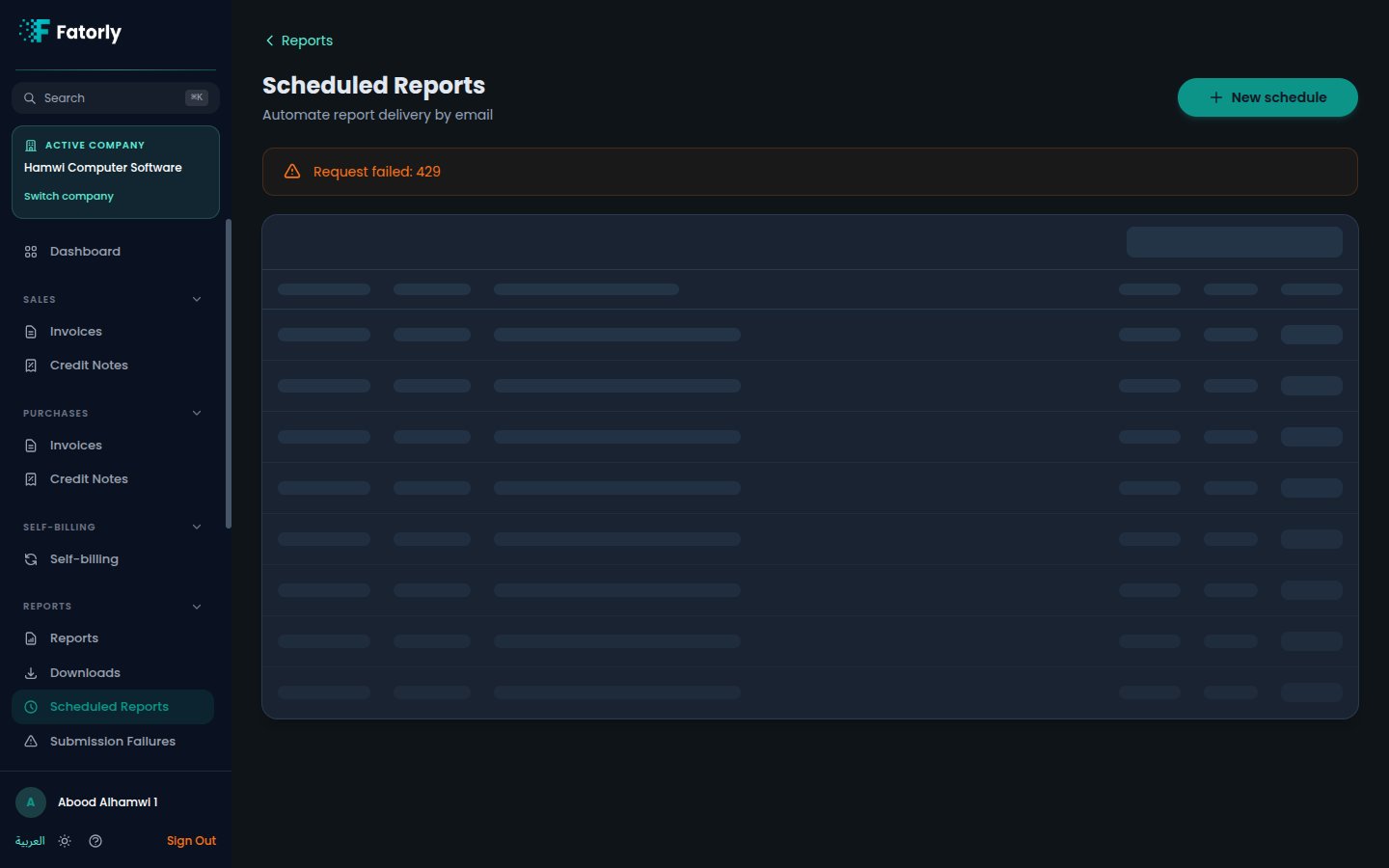 ## The list
Each row is one schedule — the report it runs, how often it runs, and the export
format it produces. Use the list to review what you have set up and to make
changes.
## Create a schedule
From the Scheduled Reports page, begin a new schedule.
Pick the report to run, set how often it should run, and choose the export
format.
Save it. From then on, Fatorly runs the report on the recurrence you set.
## Where the exports go
Each time a schedule runs, the export it produces is added to your
[Downloads](/en/reports/downloads), alongside the exports you generate by hand.
Use a schedule for any report you read regularly — for example a periodic
receivables-aging or VAT summary — so the latest export is always waiting in
Downloads.
## Related
* [Downloads](/en/reports/downloads) — where scheduled exports land.
* [Running a Report](/en/reports/running-a-report) — run a report once, by hand.
* [Reports](/en/reports/overview) — the report hub.
## The list
Each row is one schedule — the report it runs, how often it runs, and the export
format it produces. Use the list to review what you have set up and to make
changes.
## Create a schedule
From the Scheduled Reports page, begin a new schedule.
Pick the report to run, set how often it should run, and choose the export
format.
Save it. From then on, Fatorly runs the report on the recurrence you set.
## Where the exports go
Each time a schedule runs, the export it produces is added to your
[Downloads](/en/reports/downloads), alongside the exports you generate by hand.
Use a schedule for any report you read regularly — for example a periodic
receivables-aging or VAT summary — so the latest export is always waiting in
Downloads.
## Related
* [Downloads](/en/reports/downloads) — where scheduled exports land.
* [Running a Report](/en/reports/running-a-report) — run a report once, by hand.
* [Reports](/en/reports/overview) — the report hub.