> ## Documentation Index
> Fetch the complete documentation index at: https://docs.fatorly.com/llms.txt
> Use this file to discover all available pages before exploring further.
# Reports
> The Reports hub — the curated reports Fatorly offers, how to open one, and where exports and schedules live.
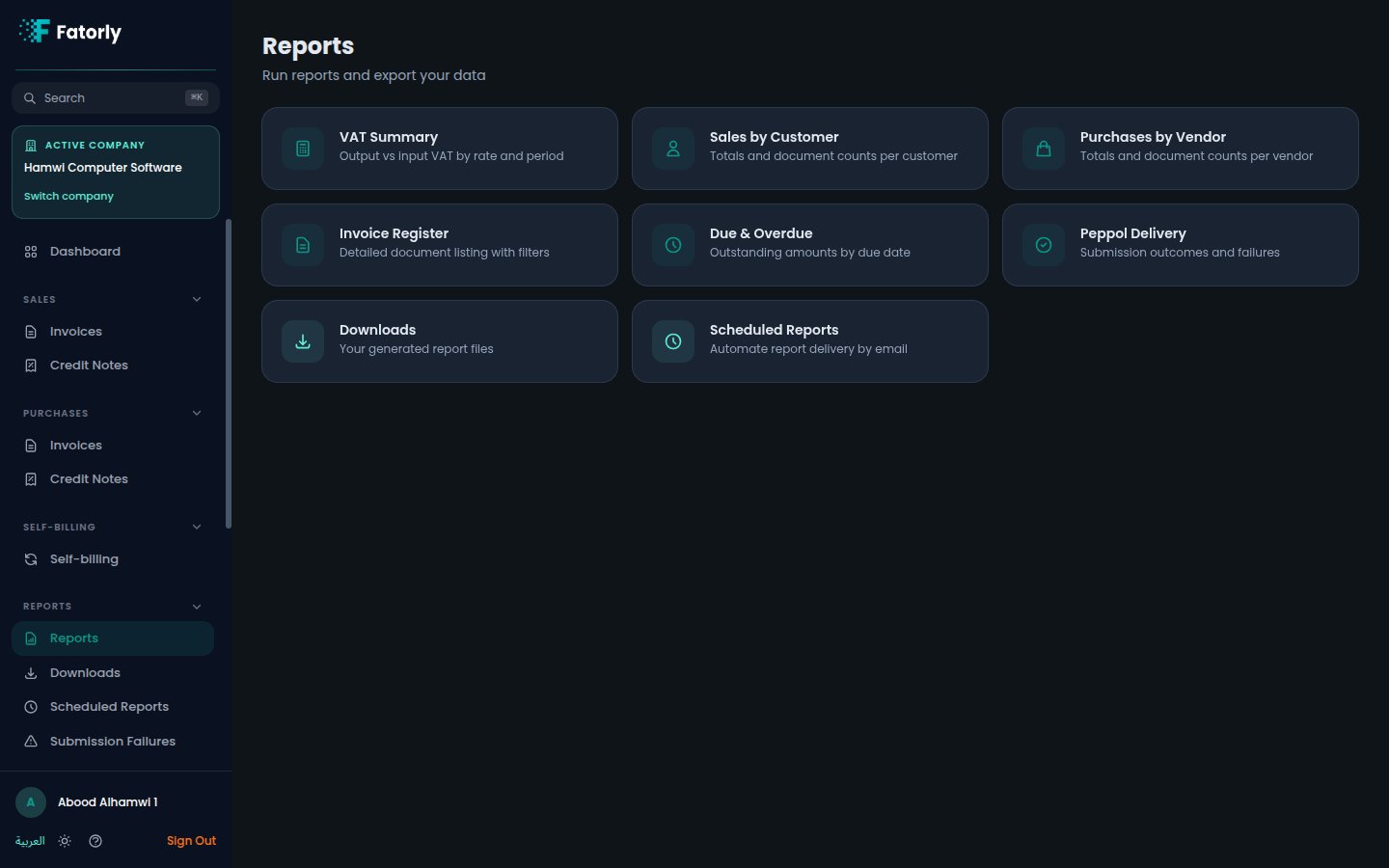
The **Reports** section is where you turn the documents in Fatorly into
ready-to-read summaries — receivables aging, sales and purchase totals,
VAT/tax breakdowns, and document-status lists. Open it from **Reports** in the
sidebar, which lands on the report hub at `/reports`.
 ## Available reports
The hub lists a set of curated reports, each as its own card. The exact set may
grow over time, but you can expect reports such as:
* **Due & overdue** — a receivables-aging view of customer invoices that are
due now or already past their due date.
* **Sales summary** — totals for the invoices you have issued over a period.
* **Purchase summary** — totals for the documents you have received.
* **VAT / tax summary** — VAT and other tax amounts grouped for reporting.
* **Document status** — a breakdown of your documents by where they are in
their lifecycle.
The reports you see depend on your plan and your role. If a report you expect is
missing, check with an administrator on your account.
## Open a report
Select any report card to open it at `/reports/:reportKey`. From there you can
set filters such as a date range and then export the result. See
[Running a Report](/en/reports/running-a-report) for the full flow.
## Exports and scheduling
The Reports section keeps two companions alongside the report list:
* **[Downloads](/en/reports/downloads)** — every export you generate collects
here at `/reports/downloads`, ready to download.
* **[Scheduled Reports](/en/reports/scheduled-reports)** — set a report to run
automatically on a recurring basis at `/reports/schedules`.
For Peppol submission problems specifically, use
[Submission Failures](/en/reports/submission-failures) — it lists invoices
whose submission failed so you can review and retry them.
## Related
* [Running a Report](/en/reports/running-a-report) — open a report, filter it,
and export to CSV, Excel, or PDF.
* [Downloads](/en/reports/downloads) — where generated exports land.
* [Scheduled Reports](/en/reports/scheduled-reports) — run reports automatically.
* [Submission Failures](/en/reports/submission-failures) — review and retry
failed Peppol submissions.
## Available reports
The hub lists a set of curated reports, each as its own card. The exact set may
grow over time, but you can expect reports such as:
* **Due & overdue** — a receivables-aging view of customer invoices that are
due now or already past their due date.
* **Sales summary** — totals for the invoices you have issued over a period.
* **Purchase summary** — totals for the documents you have received.
* **VAT / tax summary** — VAT and other tax amounts grouped for reporting.
* **Document status** — a breakdown of your documents by where they are in
their lifecycle.
The reports you see depend on your plan and your role. If a report you expect is
missing, check with an administrator on your account.
## Open a report
Select any report card to open it at `/reports/:reportKey`. From there you can
set filters such as a date range and then export the result. See
[Running a Report](/en/reports/running-a-report) for the full flow.
## Exports and scheduling
The Reports section keeps two companions alongside the report list:
* **[Downloads](/en/reports/downloads)** — every export you generate collects
here at `/reports/downloads`, ready to download.
* **[Scheduled Reports](/en/reports/scheduled-reports)** — set a report to run
automatically on a recurring basis at `/reports/schedules`.
For Peppol submission problems specifically, use
[Submission Failures](/en/reports/submission-failures) — it lists invoices
whose submission failed so you can review and retry them.
## Related
* [Running a Report](/en/reports/running-a-report) — open a report, filter it,
and export to CSV, Excel, or PDF.
* [Downloads](/en/reports/downloads) — where generated exports land.
* [Scheduled Reports](/en/reports/scheduled-reports) — run reports automatically.
* [Submission Failures](/en/reports/submission-failures) — review and retry
failed Peppol submissions.