> ## Documentation Index
> Fetch the complete documentation index at: https://docs.fatorly.com/llms.txt
> Use this file to discover all available pages before exploring further.
# Items
> Maintain the products and services you sell — and set the per-line defaults Fatorly prefills when you pick an item on an invoice.
The **Items** page is your catalogue of the products and services you invoice.
Each item stores a reusable code, bilingual name, unit of measure, unit price,
and tax defaults so you can add an invoice line with a single selection instead
of retyping everything. Open it from **Master Data → Items** in the sidebar.
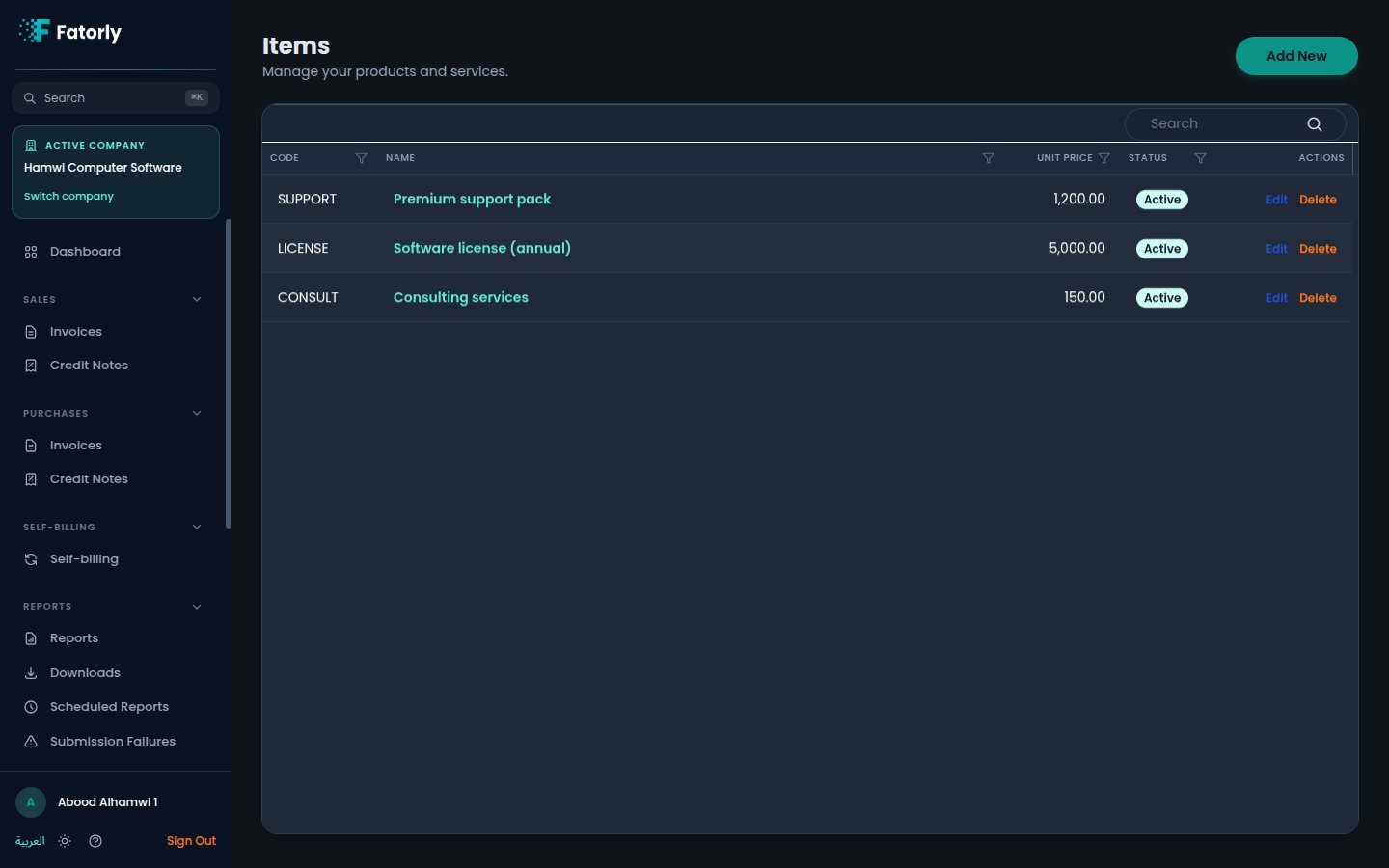 ## The list
Each row is one item. The grid has these columns:
* **Code** — the unique identifier you reference on invoice lines (for example
`SUPPORT` or `LICENSE`).
* **Name** — the item's display name. Select it to open the item for editing.
* **Unit Price** — the default price per unit in `AED`.
* **Status** — **Active** items can be selected on new documents; inactive ones
are kept for history but hidden from the picker.
* **Actions** — **Edit** and **Delete**.
Use the **Search** box in the grid toolbar to find an item by code or name, and
select any column header to sort.
## Add an item
Select **Add New** in the top-right to open the item form, which is organised
into a few cards.
Enter a unique **Code** and the **Unit of Measure**. The unit of measure
should follow UN/CEFACT codes — for example `EA` (each), `KGM` (kilogram),
or `LTR` (litre). New items default to `EA`.
Enter the item's **Name (English)** and **Name (Arabic)**. Both are required
because they appear on the bilingual e-invoice.
Enter the **Unit Price** in `AED` and, optionally, a longer **Description**.
New items are **Active** by default. Select **Save** to add the item to your
catalogue.
The code must be unique — it is the identifier used when the item is referenced
on an invoice line.
## Tax and classification defaults
Beyond the basic details, an item can carry two tax-related defaults that make
invoicing both faster and more accurate:
* **Default tax category** — the VAT category that normally applies to this item
(for example the UAE standard 5% rate, zero-rated, or exempt).
* **Default classification** — the commodity classification that describes this
item: its classification scheme (list identifier) and the code itself.
These defaults are what turn an item into a true template. When you pick the
item on an invoice line, Fatorly prefills the line's **name**, **unit of
measure**, and **unit price** from the item, and — when they are set — it also
applies the item's **default tax category** and adds its **commodity
classification** to that line. You can still override any prefilled value on the
individual invoice line.
The classification prefill only fills a line that has no classification yet, so
a code you typed manually on a line is never overwritten.
## Row actions
* **Edit** opens the item form to change its details or toggle its status.
* **Delete** removes the item from your catalogue. Documents already issued with
that item are unaffected.
## Related
* [Create or Edit an Invoice](/en/invoicing/create-invoice) — picking an item on
a line is where these defaults are applied.
* [Invoice Field Reference](/en/invoicing/invoice-field-reference) — what the
tax category and classification fields mean on a finished document.
* [Customers](/en/master-data/customers) — the buyers you invoice.
## The list
Each row is one item. The grid has these columns:
* **Code** — the unique identifier you reference on invoice lines (for example
`SUPPORT` or `LICENSE`).
* **Name** — the item's display name. Select it to open the item for editing.
* **Unit Price** — the default price per unit in `AED`.
* **Status** — **Active** items can be selected on new documents; inactive ones
are kept for history but hidden from the picker.
* **Actions** — **Edit** and **Delete**.
Use the **Search** box in the grid toolbar to find an item by code or name, and
select any column header to sort.
## Add an item
Select **Add New** in the top-right to open the item form, which is organised
into a few cards.
Enter a unique **Code** and the **Unit of Measure**. The unit of measure
should follow UN/CEFACT codes — for example `EA` (each), `KGM` (kilogram),
or `LTR` (litre). New items default to `EA`.
Enter the item's **Name (English)** and **Name (Arabic)**. Both are required
because they appear on the bilingual e-invoice.
Enter the **Unit Price** in `AED` and, optionally, a longer **Description**.
New items are **Active** by default. Select **Save** to add the item to your
catalogue.
The code must be unique — it is the identifier used when the item is referenced
on an invoice line.
## Tax and classification defaults
Beyond the basic details, an item can carry two tax-related defaults that make
invoicing both faster and more accurate:
* **Default tax category** — the VAT category that normally applies to this item
(for example the UAE standard 5% rate, zero-rated, or exempt).
* **Default classification** — the commodity classification that describes this
item: its classification scheme (list identifier) and the code itself.
These defaults are what turn an item into a true template. When you pick the
item on an invoice line, Fatorly prefills the line's **name**, **unit of
measure**, and **unit price** from the item, and — when they are set — it also
applies the item's **default tax category** and adds its **commodity
classification** to that line. You can still override any prefilled value on the
individual invoice line.
The classification prefill only fills a line that has no classification yet, so
a code you typed manually on a line is never overwritten.
## Row actions
* **Edit** opens the item form to change its details or toggle its status.
* **Delete** removes the item from your catalogue. Documents already issued with
that item are unaffected.
## Related
* [Create or Edit an Invoice](/en/invoicing/create-invoice) — picking an item on
a line is where these defaults are applied.
* [Invoice Field Reference](/en/invoicing/invoice-field-reference) — what the
tax category and classification fields mean on a finished document.
* [Customers](/en/master-data/customers) — the buyers you invoice.