> ## Documentation Index
> Fetch the complete documentation index at: https://docs.fatorly.com/llms.txt
> Use this file to discover all available pages before exploring further.
# Customers
> Maintain the buyers you issue invoices to — their tax registration, address, and contact details flow onto every document.
**Customers** are the buyers you issue sales invoices and credit notes to. Their
details — legal name, VAT TRN, address, and PEPPOL Participant ID — flow onto
your documents and enable electronic delivery. Open the page from **Master Data
→ Customers** in the sidebar.
 ## The list
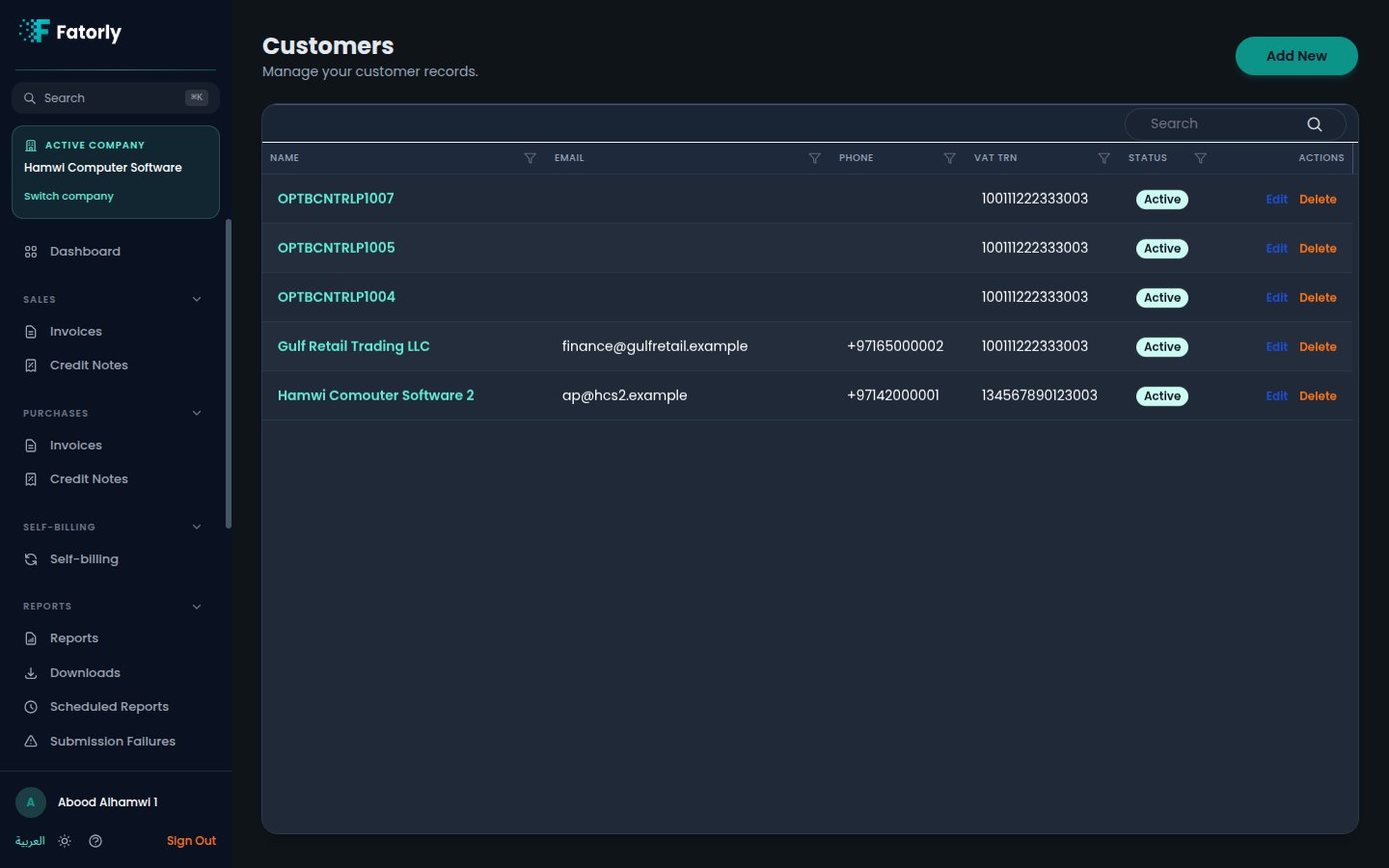
Each row is one customer. The grid has these columns:
* **Code** — the customer's reference code. Assigned automatically from the
[Customer Codes number series](/en/settings/number-series) when left empty on
create, or your own code if you entered one.
* **Name** — the customer's name. Select it to open the record for editing.
* **Email** — the customer's email address.
* **Phone** — the customer's phone number.
* **VAT TRN** — the 15-digit UAE Tax Registration Number.
* **Status** — **Active** or inactive.
* **Actions** — **Edit** and **Delete**.
Use the **Search** box to filter by name, and select any column header to sort.
## Add a customer
Select **Add New** in the top-right to open the customer form, which is grouped
into cards.
Optionally add a **Customer Code** — your own reference code, for example
from your ERP or accounting system. Leave it empty to auto-assign the next
number from the [Customer Codes series](/en/settings/number-series) (for
example `CUST-00001`). Then enter the
legal **Name (English)** and **Name (Arabic)**; both are required for
e-invoice compliance.
Optionally add the **Email**, **Phone**, **VAT TRN**, and **Contact
Person**. The VAT TRN must be a valid 15-digit UAE tax registration number.
Enter the **Address**, **City**, and **Country** (which defaults to `AE`).
Optionally add the **PEPPOL Participant ID** to enable direct electronic
delivery to this customer.
New customers are **Active** by default. Select **Save**.
A **Tax Invoice** requires a customer that has a valid VAT TRN — without it the
document cannot be issued as a tax invoice. Address and City are also required
for Peppol submission; documents will fail validation without them.
Add the **PEPPOL Participant ID** (for example
`iso6523-actorid-upis::0211:XXXXXXXXXX`) to deliver invoices to the customer
directly over the Peppol network.
## Row actions
* **Edit** opens the customer form to change the details or toggle status.
* **Delete** removes the customer. Documents already issued are unaffected.
## Related
* [Create or Edit an Invoice](/en/invoicing/create-invoice) — selecting a
customer fills the buyer details on the document.
* [Vendors](/en/master-data/vendors) — the suppliers on your purchase and
self-billing documents.
## The list
Each row is one customer. The grid has these columns:
* **Code** — the customer's reference code. Assigned automatically from the
[Customer Codes number series](/en/settings/number-series) when left empty on
create, or your own code if you entered one.
* **Name** — the customer's name. Select it to open the record for editing.
* **Email** — the customer's email address.
* **Phone** — the customer's phone number.
* **VAT TRN** — the 15-digit UAE Tax Registration Number.
* **Status** — **Active** or inactive.
* **Actions** — **Edit** and **Delete**.
Use the **Search** box to filter by name, and select any column header to sort.
## Add a customer
Select **Add New** in the top-right to open the customer form, which is grouped
into cards.
Optionally add a **Customer Code** — your own reference code, for example
from your ERP or accounting system. Leave it empty to auto-assign the next
number from the [Customer Codes series](/en/settings/number-series) (for
example `CUST-00001`). Then enter the
legal **Name (English)** and **Name (Arabic)**; both are required for
e-invoice compliance.
Optionally add the **Email**, **Phone**, **VAT TRN**, and **Contact
Person**. The VAT TRN must be a valid 15-digit UAE tax registration number.
Enter the **Address**, **City**, and **Country** (which defaults to `AE`).
Optionally add the **PEPPOL Participant ID** to enable direct electronic
delivery to this customer.
New customers are **Active** by default. Select **Save**.
A **Tax Invoice** requires a customer that has a valid VAT TRN — without it the
document cannot be issued as a tax invoice. Address and City are also required
for Peppol submission; documents will fail validation without them.
Add the **PEPPOL Participant ID** (for example
`iso6523-actorid-upis::0211:XXXXXXXXXX`) to deliver invoices to the customer
directly over the Peppol network.
## Row actions
* **Edit** opens the customer form to change the details or toggle status.
* **Delete** removes the customer. Documents already issued are unaffected.
## Related
* [Create or Edit an Invoice](/en/invoicing/create-invoice) — selecting a
customer fills the buyer details on the document.
* [Vendors](/en/master-data/vendors) — the suppliers on your purchase and
self-billing documents.