> ## Documentation Index
> Fetch the complete documentation index at: https://docs.fatorly.com/llms.txt
> Use this file to discover all available pages before exploring further.
# Import Invoices from Excel
> Create many sales invoices at once from a single Excel workbook, fix any issues on a review screen, then commit them as drafts.
When you have many invoices to enter, you can import them in bulk from a single
Excel (`.xlsx`) workbook instead of typing each one in the
[editor](/en/invoicing/create-invoice). Fatorly parses the file, checks every
invoice against the UAE PINT (PINT AE) rules, and lets you correct anything
on a review screen before saving. Imported invoices are created as **drafts** —
nothing is submitted to Peppol automatically.
Import creates **outbound sales invoices** as drafts. You review and submit them
afterwards exactly like any other draft, from the
[invoice view](/en/invoicing/view-invoice).
 ## Open the import screen
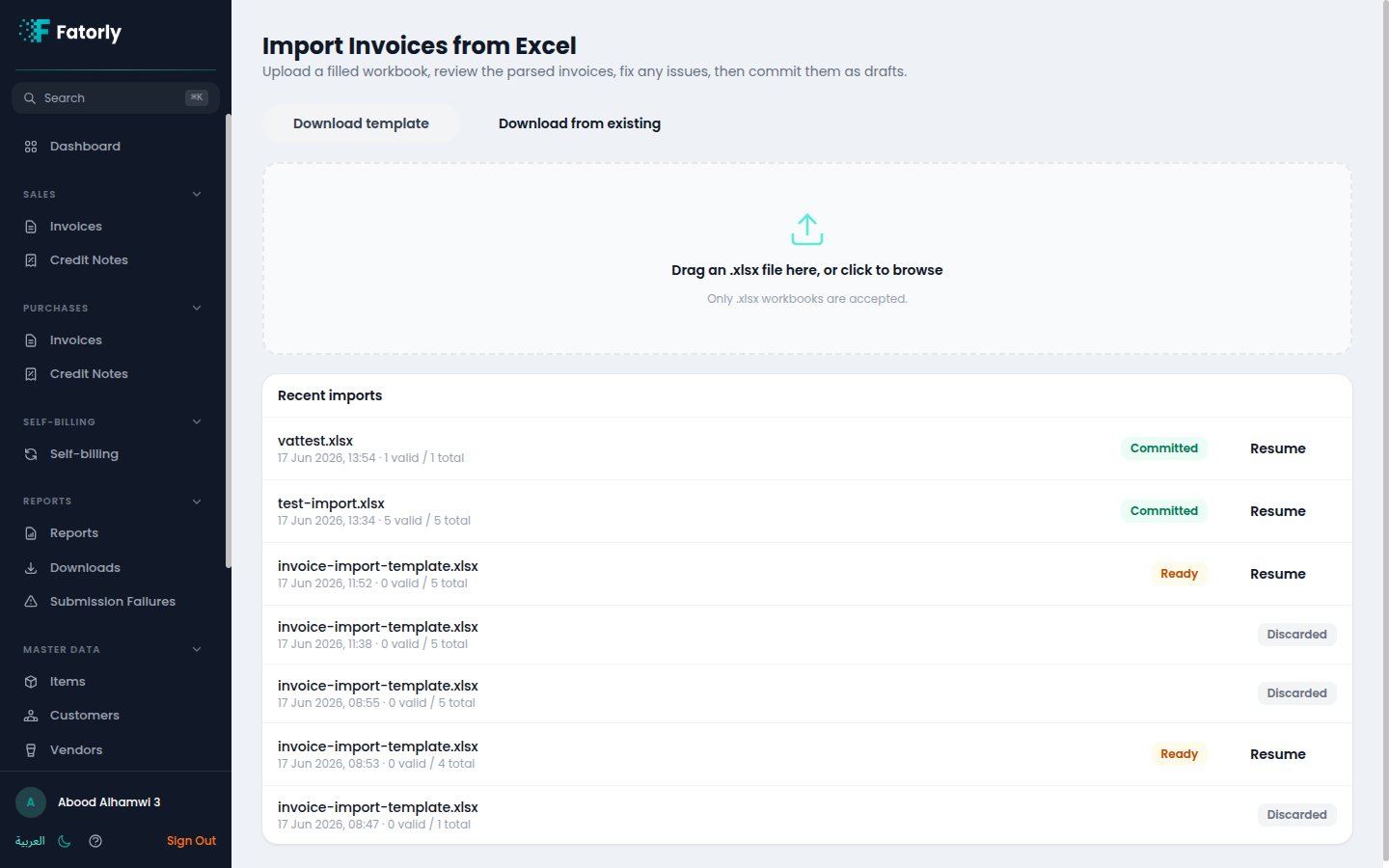
Go to **Sales → Invoices** and choose **Import from Excel**, or open the
command palette (`⌘K` / `Ctrl K`) and search for *Import*. You land on
**Import Invoices from Excel**.
## Download the template
Start from the supplied template so your columns match what Fatorly expects:
* **Download template** — a blank workbook with the recognised column headers and
dropdowns for tax category and unit of measure.
* **Download from existing** — the same layout, pre-filled from your current
invoices, so you can copy an existing invoice as a starting point.
## Fill in the workbook
The template has a single sheet named **`Invoices`** with **one row per line
item**. Rows that share the same **`InvoiceNumber`** are grouped into one invoice
with several lines, so repeat the header values (dates, buyer, …) on each of an
invoice's rows.
Column order doesn't matter — Fatorly matches columns by their header name, and
unknown columns are ignored. Leave a cell blank to accept its default.
### Columns
| Column | Meaning |
| --------------------------------------------------- | --------------------------------------------------------------------------------------------------------------------------------- |
| `InvoiceNumber` | Groups the rows of one invoice. **Must be unique** — see [Duplicate numbers](#duplicate-invoice-numbers). |
| `IssueDate`, `DueDate` | Document dates (`YYYY-MM-DD`). |
| `BuyerName` | The customer. Matched to an existing [customer](/en/master-data/customers) — see [Matching the buyer](#how-the-buyer-is-matched). |
| `BuyerTrn` | Buyer tax registration number (preferred way to match the customer). |
| `BuyerCountry`, `BuyerCity`, `BuyerAddress` | Buyer address (country defaults to `AE`). |
| `BuyerElectronicAddress` | Buyer Peppol participant ID, if the buyer isn't a saved customer. |
| `BuyerReference` | Buyer's own reference. |
| `SupplierName`, `SupplierCountry` | Optional — your own details are filled from your [Company Profile](/en/settings/company-profile) on commit. |
| `PaymentMode`, `PaymentTerms`, `PaymentBankAccount` | Payment details. |
| `Note` | Customer notes / remarks. |
| `ItemName`, `ItemDescription` | The line item. |
| `Quantity`, `UnitOfMeasure`, `UnitPrice` | Line quantity, unit (defaults to `EA`), and price. |
| `TaxCategoryCode` | `S`, `Z`, `E`, `O`, `AE`, or `L` (defaults to `S`). |
| `TaxRate` | VAT percentage. Leave blank to default from the category — see [Tax](#tax-and-vat-groups). |
| `TaxExemptionReason` | Required when the category is exempt. |
| `SellersItemId`, `BuyersItemId`, `StandardItemId` | Optional item identifiers. |
## Upload and review
Drag the filled `.xlsx` onto the upload area (or click to browse). Fatorly scans
and parses the file in the background and then shows the **review screen**.
Each parsed invoice appears in a list with a status badge:
* **Valid** — passes all checks and is ready to commit.
* **N issue(s)** — has PINT AE problems to fix first.
## Open the import screen
Go to **Sales → Invoices** and choose **Import from Excel**, or open the
command palette (`⌘K` / `Ctrl K`) and search for *Import*. You land on
**Import Invoices from Excel**.
## Download the template
Start from the supplied template so your columns match what Fatorly expects:
* **Download template** — a blank workbook with the recognised column headers and
dropdowns for tax category and unit of measure.
* **Download from existing** — the same layout, pre-filled from your current
invoices, so you can copy an existing invoice as a starting point.
## Fill in the workbook
The template has a single sheet named **`Invoices`** with **one row per line
item**. Rows that share the same **`InvoiceNumber`** are grouped into one invoice
with several lines, so repeat the header values (dates, buyer, …) on each of an
invoice's rows.
Column order doesn't matter — Fatorly matches columns by their header name, and
unknown columns are ignored. Leave a cell blank to accept its default.
### Columns
| Column | Meaning |
| --------------------------------------------------- | --------------------------------------------------------------------------------------------------------------------------------- |
| `InvoiceNumber` | Groups the rows of one invoice. **Must be unique** — see [Duplicate numbers](#duplicate-invoice-numbers). |
| `IssueDate`, `DueDate` | Document dates (`YYYY-MM-DD`). |
| `BuyerName` | The customer. Matched to an existing [customer](/en/master-data/customers) — see [Matching the buyer](#how-the-buyer-is-matched). |
| `BuyerTrn` | Buyer tax registration number (preferred way to match the customer). |
| `BuyerCountry`, `BuyerCity`, `BuyerAddress` | Buyer address (country defaults to `AE`). |
| `BuyerElectronicAddress` | Buyer Peppol participant ID, if the buyer isn't a saved customer. |
| `BuyerReference` | Buyer's own reference. |
| `SupplierName`, `SupplierCountry` | Optional — your own details are filled from your [Company Profile](/en/settings/company-profile) on commit. |
| `PaymentMode`, `PaymentTerms`, `PaymentBankAccount` | Payment details. |
| `Note` | Customer notes / remarks. |
| `ItemName`, `ItemDescription` | The line item. |
| `Quantity`, `UnitOfMeasure`, `UnitPrice` | Line quantity, unit (defaults to `EA`), and price. |
| `TaxCategoryCode` | `S`, `Z`, `E`, `O`, `AE`, or `L` (defaults to `S`). |
| `TaxRate` | VAT percentage. Leave blank to default from the category — see [Tax](#tax-and-vat-groups). |
| `TaxExemptionReason` | Required when the category is exempt. |
| `SellersItemId`, `BuyersItemId`, `StandardItemId` | Optional item identifiers. |
## Upload and review
Drag the filled `.xlsx` onto the upload area (or click to browse). Fatorly scans
and parses the file in the background and then shows the **review screen**.
Each parsed invoice appears in a list with a status badge:
* **Valid** — passes all checks and is ready to commit.
* **N issue(s)** — has PINT AE problems to fix first.
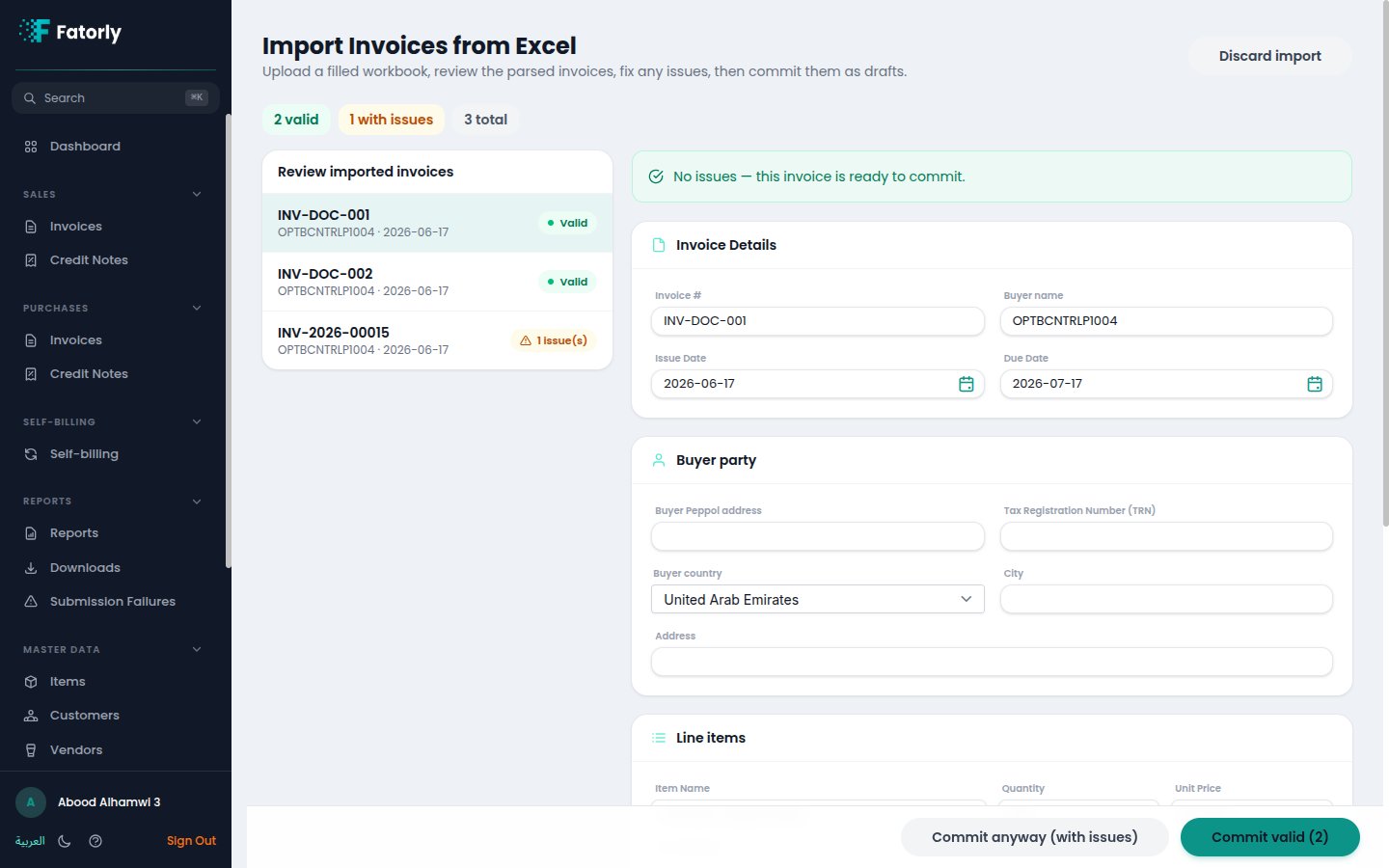 Select an invoice to see its issues and edit its fields — invoice number, dates,
the **buyer party**, and the **line items** (item, quantity, price, tax category
and rate). Choose **Save & re-validate** to re-check that invoice. The header
shows a running count of **valid / with issues / total**.
You don't have to fix everything in Excel and re-upload. Most corrections —
buyer details, dates, tax — can be made directly on the review screen.
### How the buyer is matched
Fatorly links each invoice's buyer to one of your saved
[customers](/en/master-data/customers) so it can reuse the customer's Peppol
participant ID and details:
1. First by **`BuyerTrn`** — an exact match on a customer's TRN.
2. Then by **`BuyerName`** — an exact (case-insensitive) match on a customer's
name.
If neither matches, fill the buyer's **`BuyerElectronicAddress`** (Peppol
participant ID) on the row or on the review screen.
### Tax and VAT groups
Leave **`TaxRate`** blank to let the category set it: the standard category
**`S`** defaults to **5%**, and every other category (`Z`, `E`, `O`, `AE`, `L`)
defaults to **0%**. Each line's **VAT group** is set from its
`TaxCategoryCode`, so a committed import shows its VAT exactly like an invoice you
create by hand.
### Duplicate invoice numbers
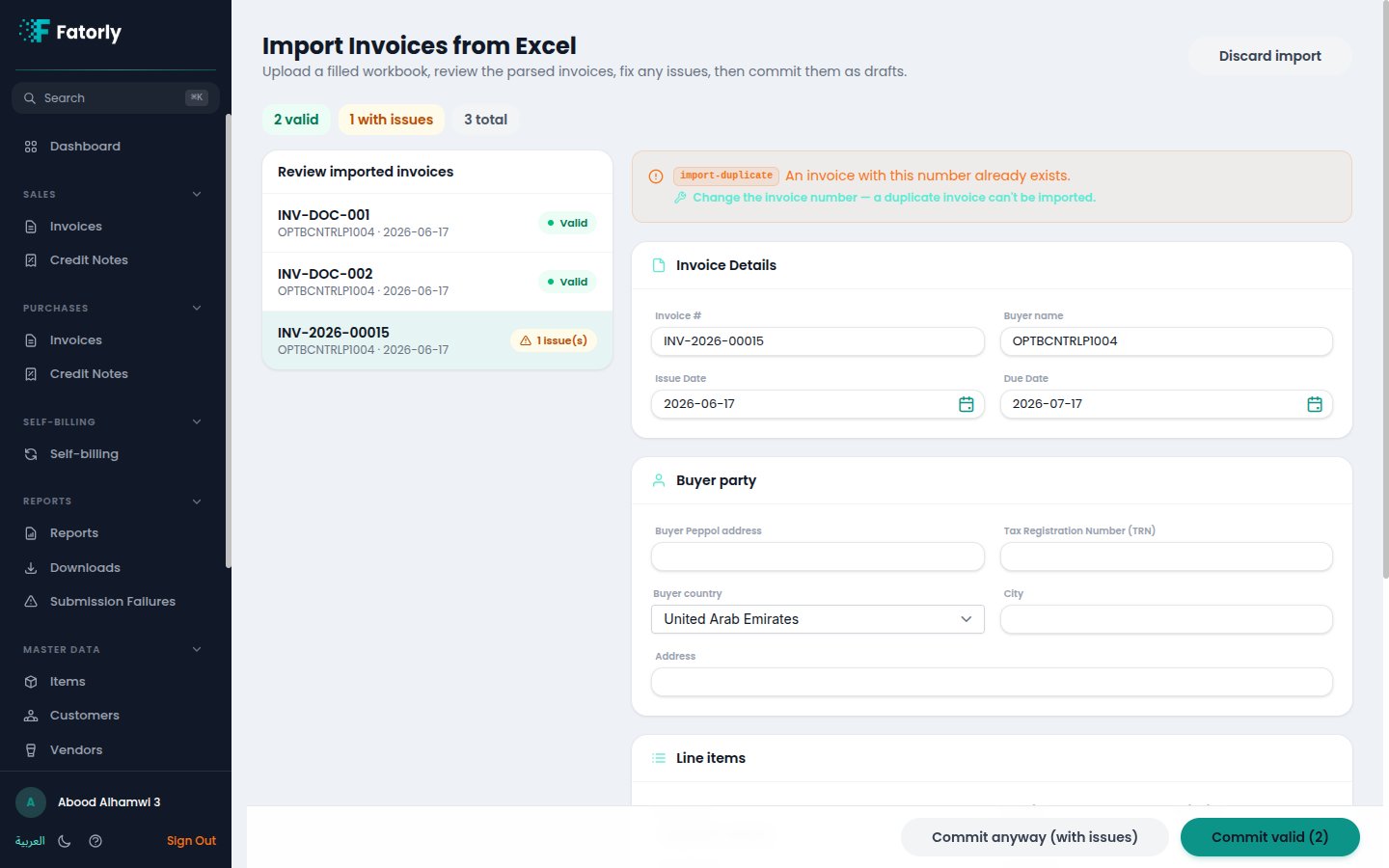
If an invoice's number already belongs to an existing invoice, that row is flagged
**An invoice with this number already exists** and **cannot be committed** —
even with *Commit anyway*. Give it a new number to import it.
Select an invoice to see its issues and edit its fields — invoice number, dates,
the **buyer party**, and the **line items** (item, quantity, price, tax category
and rate). Choose **Save & re-validate** to re-check that invoice. The header
shows a running count of **valid / with issues / total**.
You don't have to fix everything in Excel and re-upload. Most corrections —
buyer details, dates, tax — can be made directly on the review screen.
### How the buyer is matched
Fatorly links each invoice's buyer to one of your saved
[customers](/en/master-data/customers) so it can reuse the customer's Peppol
participant ID and details:
1. First by **`BuyerTrn`** — an exact match on a customer's TRN.
2. Then by **`BuyerName`** — an exact (case-insensitive) match on a customer's
name.
If neither matches, fill the buyer's **`BuyerElectronicAddress`** (Peppol
participant ID) on the row or on the review screen.
### Tax and VAT groups
Leave **`TaxRate`** blank to let the category set it: the standard category
**`S`** defaults to **5%**, and every other category (`Z`, `E`, `O`, `AE`, `L`)
defaults to **0%**. Each line's **VAT group** is set from its
`TaxCategoryCode`, so a committed import shows its VAT exactly like an invoice you
create by hand.
### Duplicate invoice numbers
If an invoice's number already belongs to an existing invoice, that row is flagged
**An invoice with this number already exists** and **cannot be committed** —
even with *Commit anyway*. Give it a new number to import it.
 ## Commit
When you're happy with the batch:
* **Commit valid (N)** — creates drafts from the valid invoices only.
* **Commit anyway (with issues)** — also commits the invoices that still have
issues. This is safe: drafts that aren't valid simply can't be submitted yet.
Duplicate-number rows are still refused.
Committed invoices become **drafts** in **Sales → Invoices**. A partial commit
leaves the batch open so you can keep fixing the rest.
## Recent imports
The upload screen lists your **recent imports** — file name, when it ran, the
valid/total counts, and its status (*Parsing*, *Ready*, *Committed*, or
*Discarded*). Choose **Resume** to reopen a batch you left earlier, so closing
the page never loses an upload you haven't committed yet.
## What's accepted
Only `.xlsx` workbooks are accepted — macro-enabled files (`.xlsm`, `.xlsb`) are
rejected, and the file is virus-scanned on upload. Cell **formulas are not
evaluated**; their last saved value is used (and flagged). The sheet is limited to
a generous row count, well beyond a normal batch.
## Related
* [Create or Edit an Invoice](/en/invoicing/create-invoice) — the manual editor.
* [Invoice Field Reference](/en/invoicing/invoice-field-reference) — every field and its rules.
* [Customers](/en/master-data/customers) — the buyers an import links to.
* [Items](/en/master-data/items) — item defaults you can mirror in the template.
* [Sales Invoices](/en/sales/sales-invoices) — where committed drafts appear.
* [View an Invoice](/en/invoicing/view-invoice) — review and submit a draft.
## Commit
When you're happy with the batch:
* **Commit valid (N)** — creates drafts from the valid invoices only.
* **Commit anyway (with issues)** — also commits the invoices that still have
issues. This is safe: drafts that aren't valid simply can't be submitted yet.
Duplicate-number rows are still refused.
Committed invoices become **drafts** in **Sales → Invoices**. A partial commit
leaves the batch open so you can keep fixing the rest.
## Recent imports
The upload screen lists your **recent imports** — file name, when it ran, the
valid/total counts, and its status (*Parsing*, *Ready*, *Committed*, or
*Discarded*). Choose **Resume** to reopen a batch you left earlier, so closing
the page never loses an upload you haven't committed yet.
## What's accepted
Only `.xlsx` workbooks are accepted — macro-enabled files (`.xlsm`, `.xlsb`) are
rejected, and the file is virus-scanned on upload. Cell **formulas are not
evaluated**; their last saved value is used (and flagged). The sheet is limited to
a generous row count, well beyond a normal batch.
## Related
* [Create or Edit an Invoice](/en/invoicing/create-invoice) — the manual editor.
* [Invoice Field Reference](/en/invoicing/invoice-field-reference) — every field and its rules.
* [Customers](/en/master-data/customers) — the buyers an import links to.
* [Items](/en/master-data/items) — item defaults you can mirror in the template.
* [Sales Invoices](/en/sales/sales-invoices) — where committed drafts appear.
* [View an Invoice](/en/invoicing/view-invoice) — review and submit a draft.