> ## Documentation Index
> Fetch the complete documentation index at: https://docs.fatorly.com/llms.txt
> Use this file to discover all available pages before exploring further.
# Dashboard
> Your at-a-glance overview of invoices, VAT, and PEPPOL submission status.
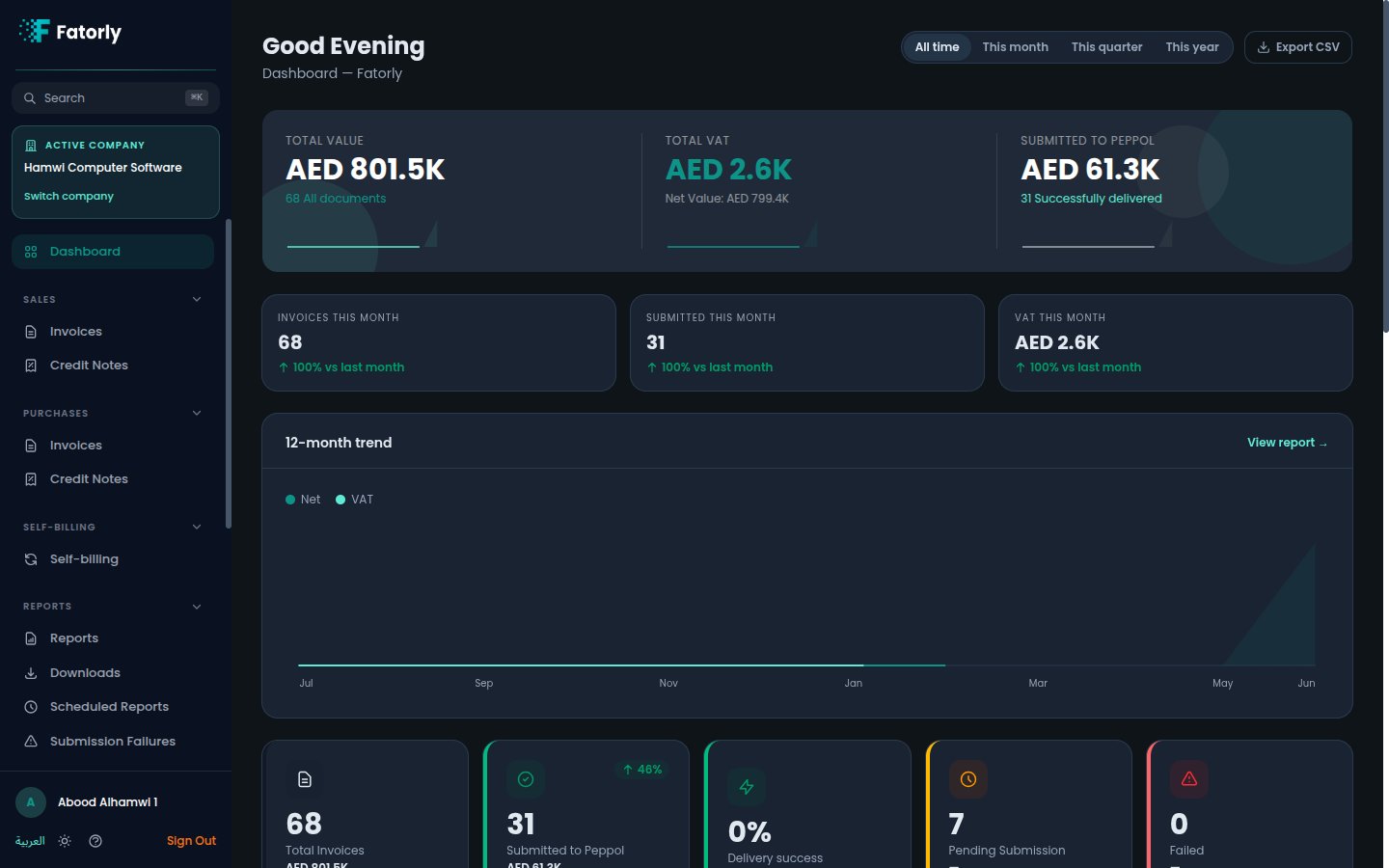
The dashboard is your home screen after signing in (route `/`). It summarizes
your invoicing activity — totals, VAT, submission status, and what needs your
attention — so you can see the health of your e-invoicing at a glance.
 ## The sidebar
Everything in the app is reached from the left sidebar, grouped by task:
**Dashboard**, **Sales**, **Purchases**, **Self-billing**, **Reports**,
**Master Data + Files**, **Company**, and **Account**. The dashboard ties these
together with headline figures and quick links.
## KPI cards
The top of the dashboard shows headline figures across all your documents:
| Card | What it shows |
| ------------------- | -------------------------------------------------------- |
| Total Value | Combined value of all documents, and the document count. |
| Total VAT | Total VAT, with the net value below it. |
| Submitted to PEPPOL | Value successfully delivered over the PEPPOL network. |
Alongside these, **this-month** comparison cards (Invoices, Submitted, VAT)
show the current month versus the previous month so you can spot trends.
## Status tiles
Tiles break activity down by submission stage so you always know where your
documents stand:
* **Total Invoices** — every document and its combined value.
* **Submitted to PEPPOL** — documents sent or delivered.
* **Pending Submission** — drafts and validated documents not yet sent.
* **Failed** — documents that need attention.
## Due & overdue
A **Due & overdue** report tile highlights invoices that are approaching their
due date or already past it, so payments and submissions don't slip.
A **"X overdue invoices"** banner appears when you have draft or validated
invoices issued more than 30 days ago. Select **Review** to open them.
## Breakdowns
* **Invoice Status Breakdown** — counts by status: Draft, Validated, Sent,
Delivered, Failed, Received.
* **Document Categories** — value and count per type: Tax Invoice, Commercial
Invoice, Tax Credit Note, Commercial Credit Note, Self-billed Tax Invoice,
Self-billed Tax Credit Note.
## Recent activity, top customers & quick navigation
* **Recent Activity** lists your latest documents; select any row to open it.
**View All** goes to [Sales Invoices](/en/sales/sales-invoices).
* **Top Customers** ranks your customers by value.
* **Quick Actions** are shortcuts to create a new Tax Invoice, Commercial
Invoice, Tax Credit Note, or to record a received invoice.
## Export
Select **Export CSV** to download your documents as a spreadsheet. For deeper
analysis, head to **Reports** in the sidebar.
## The sidebar
Everything in the app is reached from the left sidebar, grouped by task:
**Dashboard**, **Sales**, **Purchases**, **Self-billing**, **Reports**,
**Master Data + Files**, **Company**, and **Account**. The dashboard ties these
together with headline figures and quick links.
## KPI cards
The top of the dashboard shows headline figures across all your documents:
| Card | What it shows |
| ------------------- | -------------------------------------------------------- |
| Total Value | Combined value of all documents, and the document count. |
| Total VAT | Total VAT, with the net value below it. |
| Submitted to PEPPOL | Value successfully delivered over the PEPPOL network. |
Alongside these, **this-month** comparison cards (Invoices, Submitted, VAT)
show the current month versus the previous month so you can spot trends.
## Status tiles
Tiles break activity down by submission stage so you always know where your
documents stand:
* **Total Invoices** — every document and its combined value.
* **Submitted to PEPPOL** — documents sent or delivered.
* **Pending Submission** — drafts and validated documents not yet sent.
* **Failed** — documents that need attention.
## Due & overdue
A **Due & overdue** report tile highlights invoices that are approaching their
due date or already past it, so payments and submissions don't slip.
A **"X overdue invoices"** banner appears when you have draft or validated
invoices issued more than 30 days ago. Select **Review** to open them.
## Breakdowns
* **Invoice Status Breakdown** — counts by status: Draft, Validated, Sent,
Delivered, Failed, Received.
* **Document Categories** — value and count per type: Tax Invoice, Commercial
Invoice, Tax Credit Note, Commercial Credit Note, Self-billed Tax Invoice,
Self-billed Tax Credit Note.
## Recent activity, top customers & quick navigation
* **Recent Activity** lists your latest documents; select any row to open it.
**View All** goes to [Sales Invoices](/en/sales/sales-invoices).
* **Top Customers** ranks your customers by value.
* **Quick Actions** are shortcuts to create a new Tax Invoice, Commercial
Invoice, Tax Credit Note, or to record a received invoice.
## Export
Select **Export CSV** to download your documents as a spreadsheet. For deeper
analysis, head to **Reports** in the sidebar.