> ## Documentation Index
> Fetch the complete documentation index at: https://docs.fatorly.com/llms.txt
> Use this file to discover all available pages before exploring further.
# Reset Password
> Set a new password using the link from your reset email.
You reach this page from the link in your password-reset email. Use it to choose
a new password for your account.
 ## Set a new password
Select the reset link in the email you received after using
[Forgot Password](/en/getting-started/forgot-password). The link contains a
secure token that authorizes the change.
Type your new password, then re-enter it to confirm.
Select **Reset Password**. Once successful, you can sign in with your new
password.
## Fields
| Field | Required | Description |
| ---------------- | -------- | ------------------------------------------------- |
| New Password | Yes | Your new password. Must be at least 6 characters. |
| Confirm Password | Yes | Must match the new password exactly. |
## Validation
* The two passwords must match.
* The password must be at least **6 characters** long.
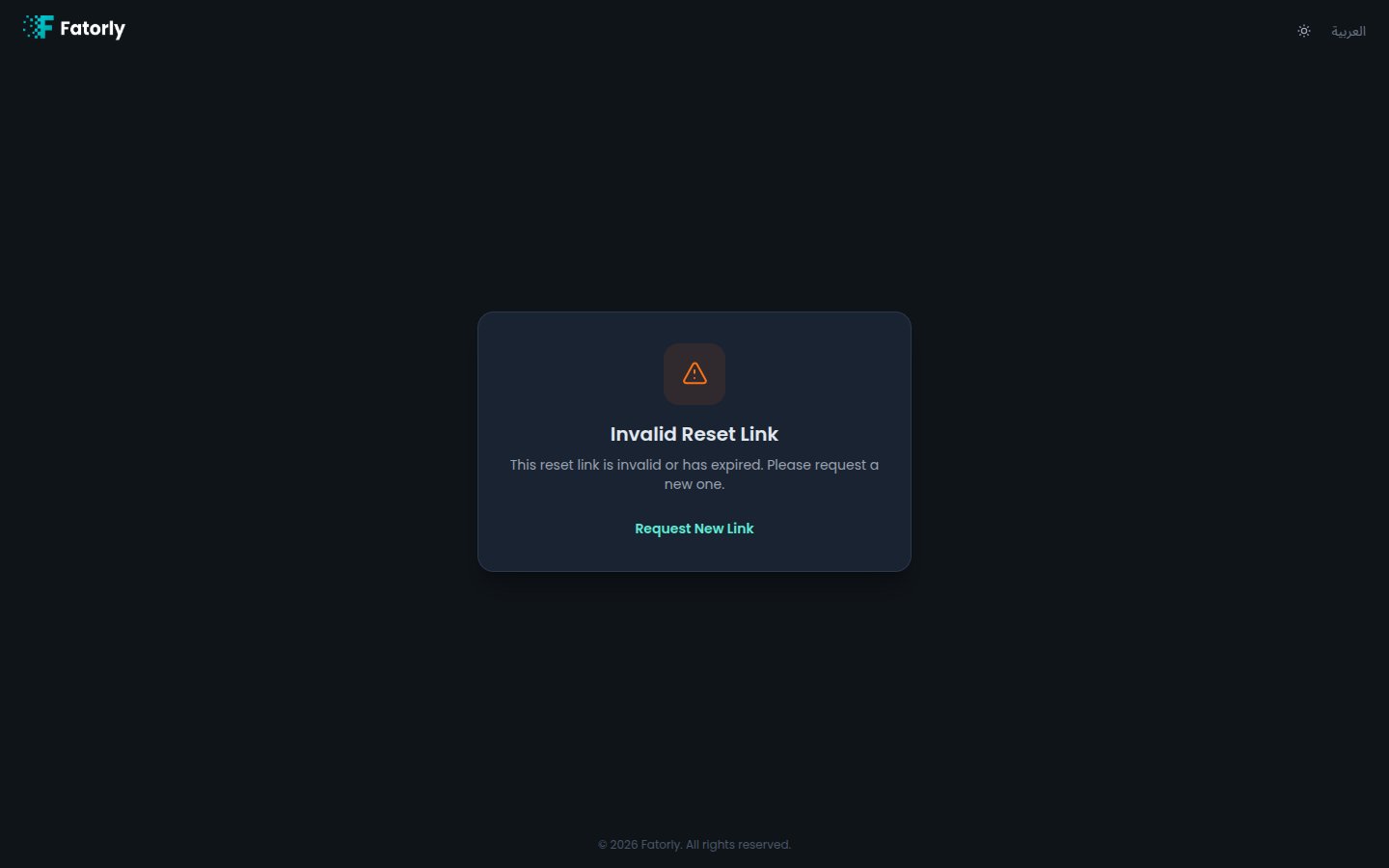
* The reset link must still be valid. If it has expired or already been used,
request a new one from [Forgot Password](/en/getting-started/forgot-password).
If you open this page without a valid reset link, the reset cannot complete.
Always start from the link in your most recent reset email.
Already signed in and just want to update your password? Use
[Change Password](/en/settings/change-password) instead.
## Set a new password
Select the reset link in the email you received after using
[Forgot Password](/en/getting-started/forgot-password). The link contains a
secure token that authorizes the change.
Type your new password, then re-enter it to confirm.
Select **Reset Password**. Once successful, you can sign in with your new
password.
## Fields
| Field | Required | Description |
| ---------------- | -------- | ------------------------------------------------- |
| New Password | Yes | Your new password. Must be at least 6 characters. |
| Confirm Password | Yes | Must match the new password exactly. |
## Validation
* The two passwords must match.
* The password must be at least **6 characters** long.
* The reset link must still be valid. If it has expired or already been used,
request a new one from [Forgot Password](/en/getting-started/forgot-password).
If you open this page without a valid reset link, the reset cannot complete.
Always start from the link in your most recent reset email.
Already signed in and just want to update your password? Use
[Change Password](/en/settings/change-password) instead.