> ## Documentation Index
> Fetch the complete documentation index at: https://docs.fatorly.com/llms.txt
> Use this file to discover all available pages before exploring further.
# Create an Account
> Register for a Fatorly account to start issuing compliant e-invoices.
The registration page is where new users create a Fatorly account. After you
register, Fatorly sends a verification email — you confirm your address before
signing in for the first time.
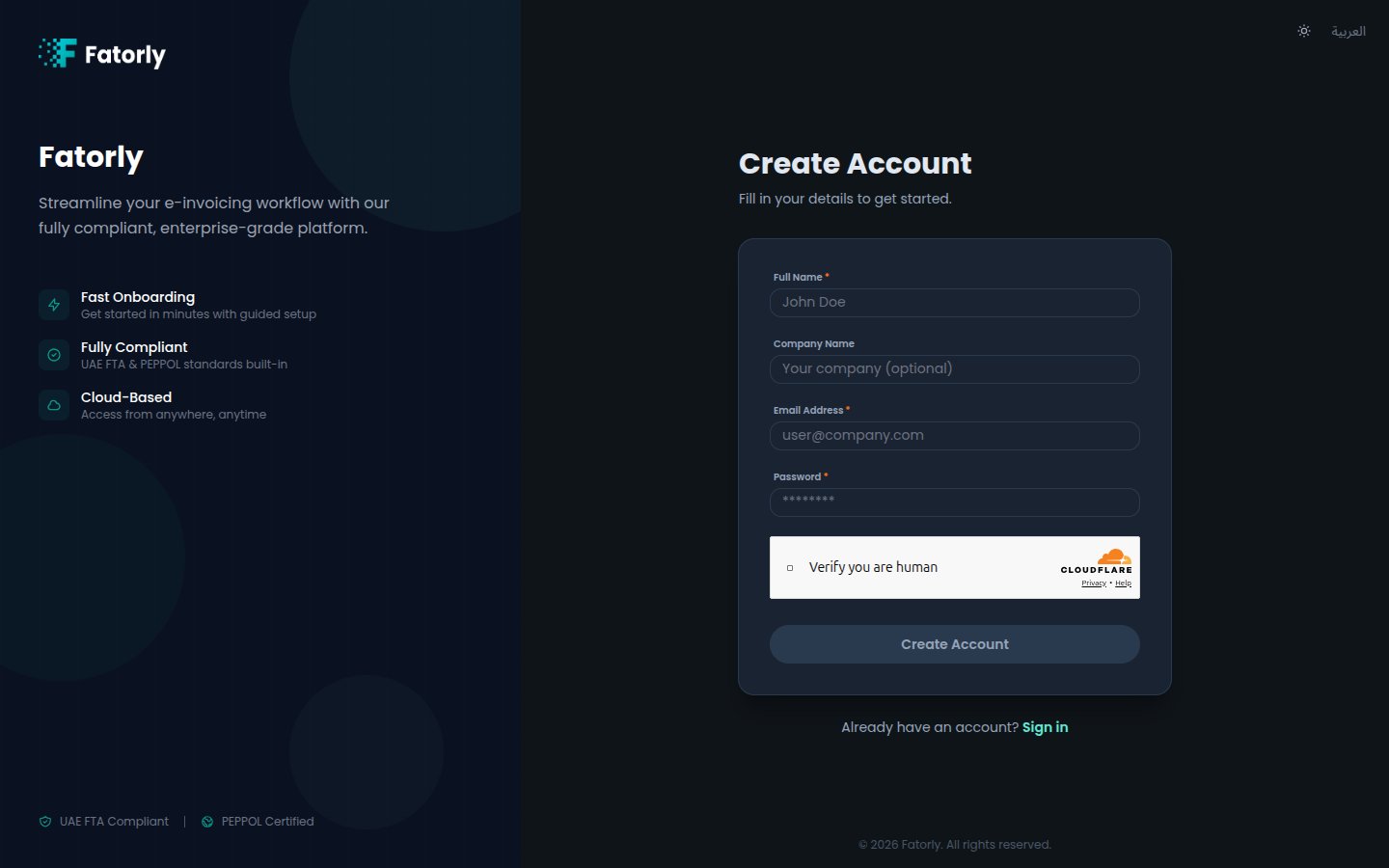 ## Create your account
Go to the [sign-in screen](/en/getting-started/login) and select **Create
one**, or navigate directly to `/register`.
Fill in your full name, email address, and a password. Optionally add your
company name.
If a security check is shown, complete it. The **Create Account** button
stays disabled until the required fields are filled and the check passes.
Select **Create Account**. Fatorly creates your account and sends a
verification email.
Open the email and confirm your address. See
[Verify Email](/en/getting-started/verify-email) for details. You can resend
the email from the confirmation screen if it does not arrive.
## Fields
| Field | Required | Description |
| ------------- | -------- | ------------------------------------------------------------------------------------------------------------- |
| Full Name | Yes | Your name as the account owner. |
| Company Name | No | Your business name. You can also set or change this later in [Company Profile](/en/settings/company-profile). |
| Email Address | Yes | Used to sign in and to receive the verification email. Must be a valid address you can access. |
| Password | Yes | Your account password. |
Use an email address you check regularly — account verification, password
resets, and important notifications are sent there.
Registering creates your user account only. To send and receive invoices over
the PEPPOL network, complete [onboarding](/en/getting-started/onboarding) to link
your business with the UAE Federal Tax Authority (FTA).
## Already have an account?
Select **Sign in** to go to the [login page](/en/getting-started/login).
## Create your account
Go to the [sign-in screen](/en/getting-started/login) and select **Create
one**, or navigate directly to `/register`.
Fill in your full name, email address, and a password. Optionally add your
company name.
If a security check is shown, complete it. The **Create Account** button
stays disabled until the required fields are filled and the check passes.
Select **Create Account**. Fatorly creates your account and sends a
verification email.
Open the email and confirm your address. See
[Verify Email](/en/getting-started/verify-email) for details. You can resend
the email from the confirmation screen if it does not arrive.
## Fields
| Field | Required | Description |
| ------------- | -------- | ------------------------------------------------------------------------------------------------------------- |
| Full Name | Yes | Your name as the account owner. |
| Company Name | No | Your business name. You can also set or change this later in [Company Profile](/en/settings/company-profile). |
| Email Address | Yes | Used to sign in and to receive the verification email. Must be a valid address you can access. |
| Password | Yes | Your account password. |
Use an email address you check regularly — account verification, password
resets, and important notifications are sent there.
Registering creates your user account only. To send and receive invoices over
the PEPPOL network, complete [onboarding](/en/getting-started/onboarding) to link
your business with the UAE Federal Tax Authority (FTA).
## Already have an account?
Select **Sign in** to go to the [login page](/en/getting-started/login).