> ## Documentation Index
> Fetch the complete documentation index at: https://docs.fatorly.com/llms.txt
> Use this file to discover all available pages before exploring further.
# Onboarding
> Link your business to Fatorly through EmaraTax, step by step, and activate e-invoicing.
Onboarding creates the link between your business and Fatorly as your Accredited
Service Provider. You start in **EmaraTax**, the FTA portal, and finish in a short
two-step wizard on our side.
You do **not** need a Fatorly account first. If you continue without signing in, we
create your account from the details the Federal Tax Authority has verified, on the
Free plan. If you already have an account, you can sign in during the wizard so the
link attaches to it.
## Part 1 — In EmaraTax
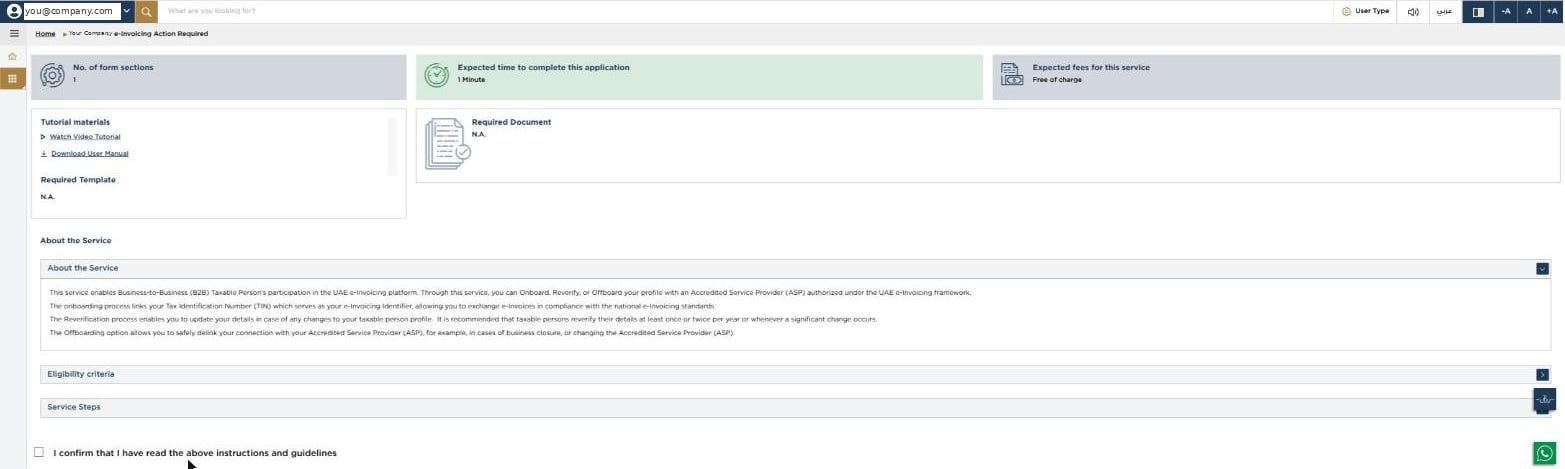
Sign in to EmaraTax, choose the taxable person you're linking, and open
**E-INVOICING** from the left-hand menu.
The service page explains what onboarding, reverification and offboarding do.
Read it, then tick **I confirm that I have read the above instructions and
guidelines** at the bottom.
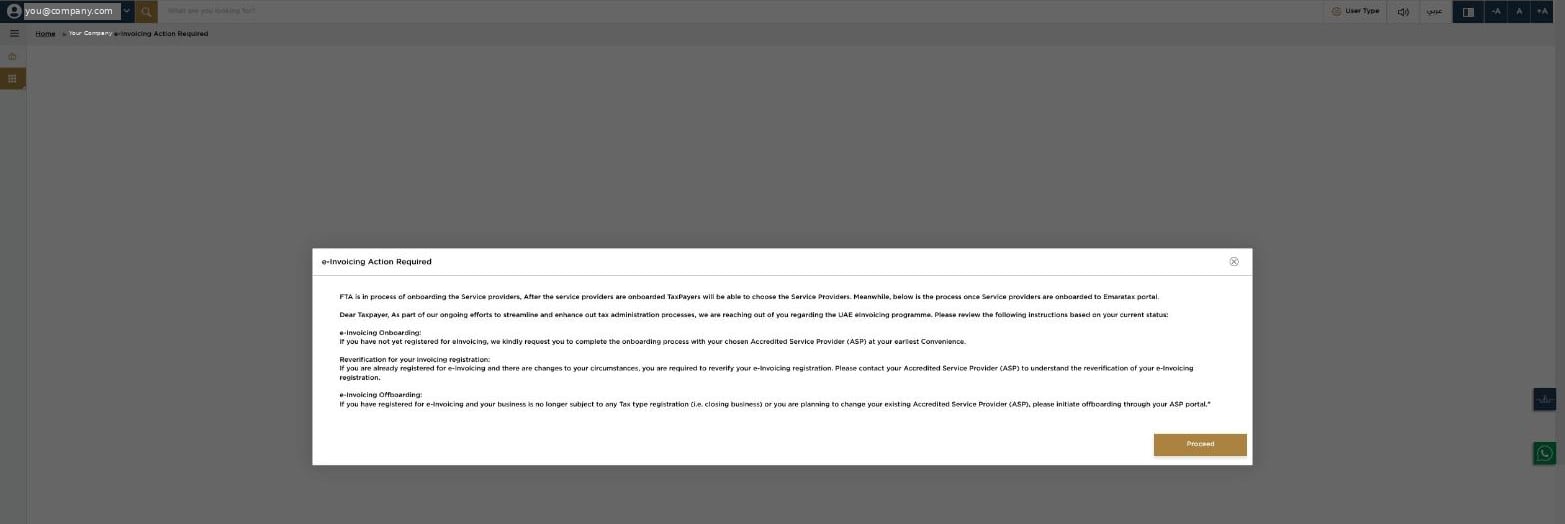
 EmaraTax shows an **e-Invoicing Action Required** popup describing the three
actions available to you. Select **Proceed**.
EmaraTax shows an **e-Invoicing Action Required** popup describing the three
actions available to you. Select **Proceed**.
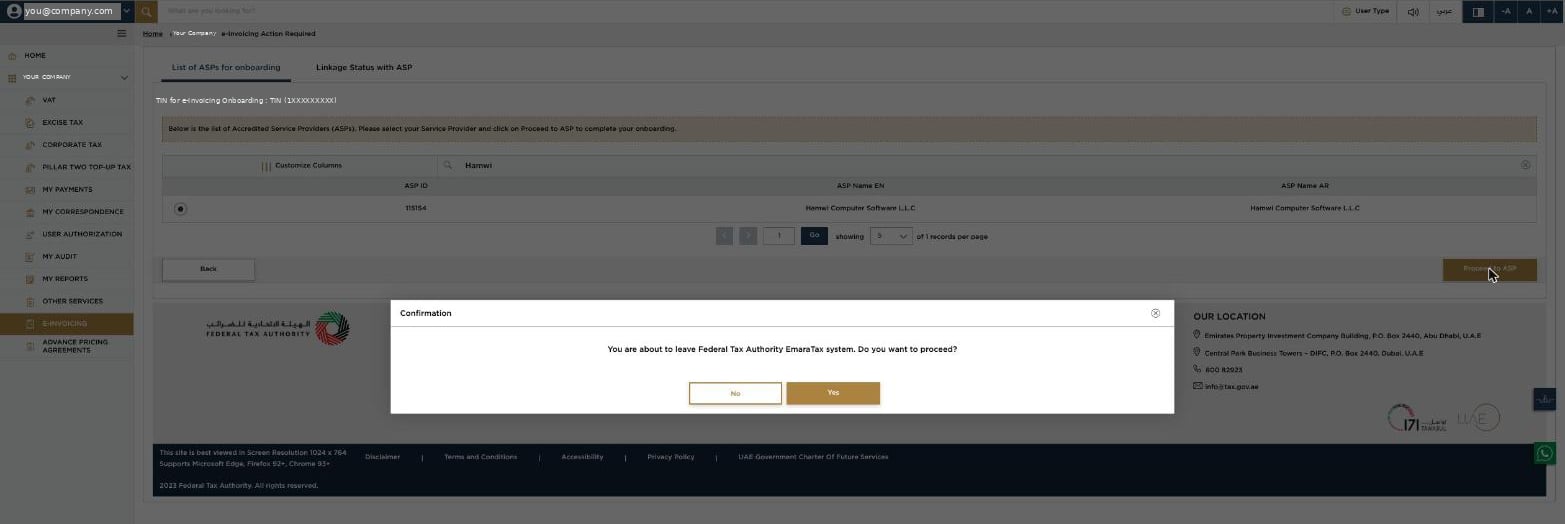
 You'll see the list of accredited service providers for your TIN. Search for
**Hamwi Computer Software L.L.C** — that is Fatorly's registered entity, **ASP
ID 115154** — select the radio button on its row, and choose **Proceed to ASP**.
You'll see the list of accredited service providers for your TIN. Search for
**Hamwi Computer Software L.L.C** — that is Fatorly's registered entity, **ASP
ID 115154** — select the radio button on its row, and choose **Proceed to ASP**.
 Your TIN is shown just above the table, as **TIN for e-Invoicing Onboarding**.
That's the number you'll enter on the next screen.
A confirmation popup appears. Choose **Yes** to continue to Fatorly.
Your TIN is shown just above the table, as **TIN for e-Invoicing Onboarding**.
That's the number you'll enter on the next screen.
A confirmation popup appears. Choose **Yes** to continue to Fatorly.
 ## Part 2 — In the Fatorly wizard
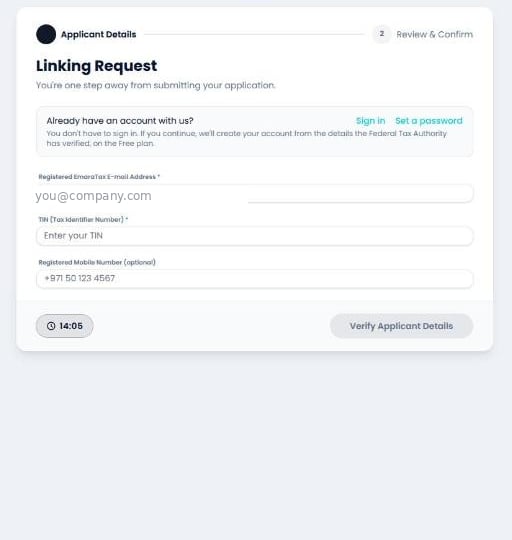
EmaraTax hands you to us with a secure, single-use request. The wizard has two
steps, shown by the indicator across the top, and a **15-minute countdown** in the
bottom-left corner.
### Step 1 — Applicant details
## Part 2 — In the Fatorly wizard
EmaraTax hands you to us with a secure, single-use request. The wizard has two
steps, shown by the indicator across the top, and a **15-minute countdown** in the
bottom-left corner.
### Step 1 — Applicant details
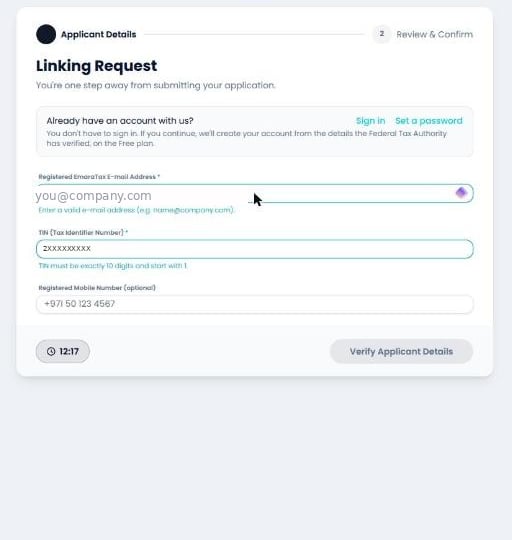
 | Field | Required | Notes |
| -------------------------------------- | -------- | ------------------------------------------ |
| **Registered EmaraTax E-mail Address** | Yes | Must be the address the FTA holds for you. |
| **TIN (Tax Identifier Number)** | Yes | Exactly 10 digits, starting with `1`. |
| **Registered Mobile Number** | No | The mobile number registered with the FTA. |
**Verify Applicant Details** stays greyed out until every field passes format
validation — so if the button won't respond, a field is still invalid.
| Field | Required | Notes |
| -------------------------------------- | -------- | ------------------------------------------ |
| **Registered EmaraTax E-mail Address** | Yes | Must be the address the FTA holds for you. |
| **TIN (Tax Identifier Number)** | Yes | Exactly 10 digits, starting with `1`. |
| **Registered Mobile Number** | No | The mobile number registered with the FTA. |
**Verify Applicant Details** stays greyed out until every field passes format
validation — so if the button won't respond, a field is still invalid.
 Format validation only checks the *shape* of what you typed. It cannot tell whether
an e-mail address is the one the FTA holds — only the FTA can, when you select
**Verify Applicant Details**. See
[Troubleshooting](/en/fta-linking/troubleshooting) if verification is refused.
### Step 2 — Review & confirm
Once the FTA verifies you, it returns your registration details. They are filled in
for you and **cannot be edited** — they are the FTA's record, not ours.
Format validation only checks the *shape* of what you typed. It cannot tell whether
an e-mail address is the one the FTA holds — only the FTA can, when you select
**Verify Applicant Details**. See
[Troubleshooting](/en/fta-linking/troubleshooting) if verification is refused.
### Step 2 — Review & confirm
Once the FTA verifies you, it returns your registration details. They are filled in
for you and **cannot be edited** — they are the FTA's record, not ours.
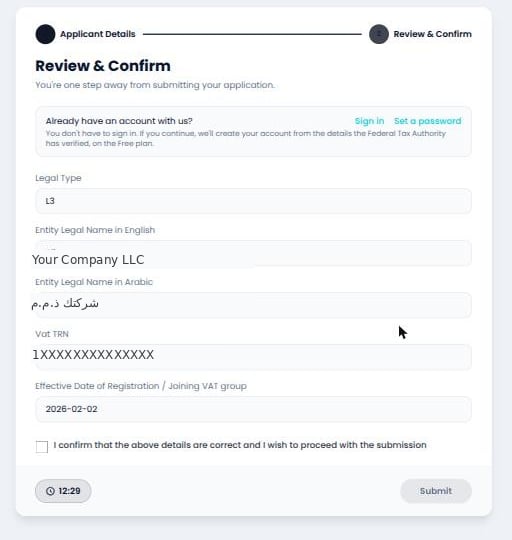 | Field | What it is |
| ------------------------------------------------------ | ------------------------------------------------------------------------------------------------------------------------------------------------------------- |
| **Legal Type** | The FTA's legal-type code for your entity. |
| **Entity Legal Name in English / Arabic** | Your registered legal names. |
| **Vat TRN** | Your VAT Tax Registration Number — **may be empty, or may differ from your TIN's own registration**. See [Kinds of taxpayer](/en/fta-linking/taxpayer-types). |
| **Effective Date of Registration / Joining VAT group** | Date of registration, or of joining the VAT group. |
Tick **I confirm that the above details are correct and I wish to proceed with the
submission**, then select **Submit**. The checkbox gates the button — Submit stays
disabled until you tick it.
### Confirmation
| Field | What it is |
| ------------------------------------------------------ | ------------------------------------------------------------------------------------------------------------------------------------------------------------- |
| **Legal Type** | The FTA's legal-type code for your entity. |
| **Entity Legal Name in English / Arabic** | Your registered legal names. |
| **Vat TRN** | Your VAT Tax Registration Number — **may be empty, or may differ from your TIN's own registration**. See [Kinds of taxpayer](/en/fta-linking/taxpayer-types). |
| **Effective Date of Registration / Joining VAT group** | Date of registration, or of joining the VAT group. |
Tick **I confirm that the above details are correct and I wish to proceed with the
submission**, then select **Submit**. The checkbox gates the button — Submit stays
disabled until you tick it.
### Confirmation
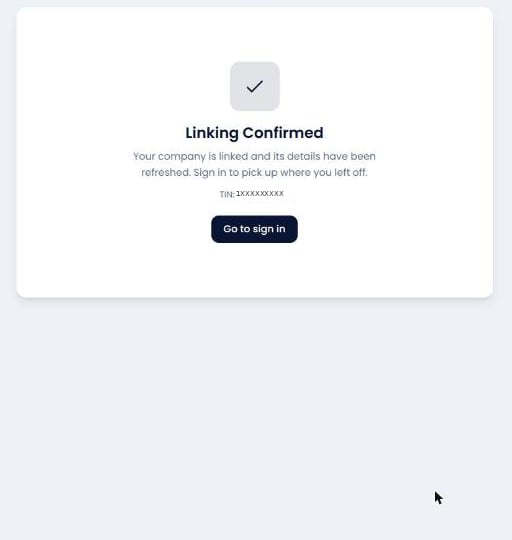 The confirmation screen carries **your TIN**, so you can keep it as a record of
which taxpayer was linked. We also e-mail an invitation to the registered address so
you can set a password and sign in.
At this point we register your business on the Peppol network as `0235:`,
and you can start issuing invoices. See
[Create / Edit an Invoice](/en/invoicing/create-invoice).
## Checking it worked
Back in EmaraTax, the **Linkage Status with ASP** tab shows a row for your TIN with
status **Linked**, our ASP ID, and the date.
The confirmation screen carries **your TIN**, so you can keep it as a record of
which taxpayer was linked. We also e-mail an invitation to the registered address so
you can set a password and sign in.
At this point we register your business on the Peppol network as `0235:`,
and you can start issuing invoices. See
[Create / Edit an Invoice](/en/invoicing/create-invoice).
## Checking it worked
Back in EmaraTax, the **Linkage Status with ASP** tab shows a row for your TIN with
status **Linked**, our ASP ID, and the date.
 The table holds **one row per linkage** and updates that row in place. If you have
linked and unlinked before, you'll see the earlier rows here too, each with its own
status and date.
The table holds **one row per linkage** and updates that row in place. If you have
linked and unlinked before, you'll see the earlier rows here too, each with its own
status and date.