> ## Documentation Index
> Fetch the complete documentation index at: https://docs.fatorly.com/llms.txt
> Use this file to discover all available pages before exploring further.
# Files
> Upload and manage the attachment files you reference on your invoices, with virus-scan status and per-file usage tracking.
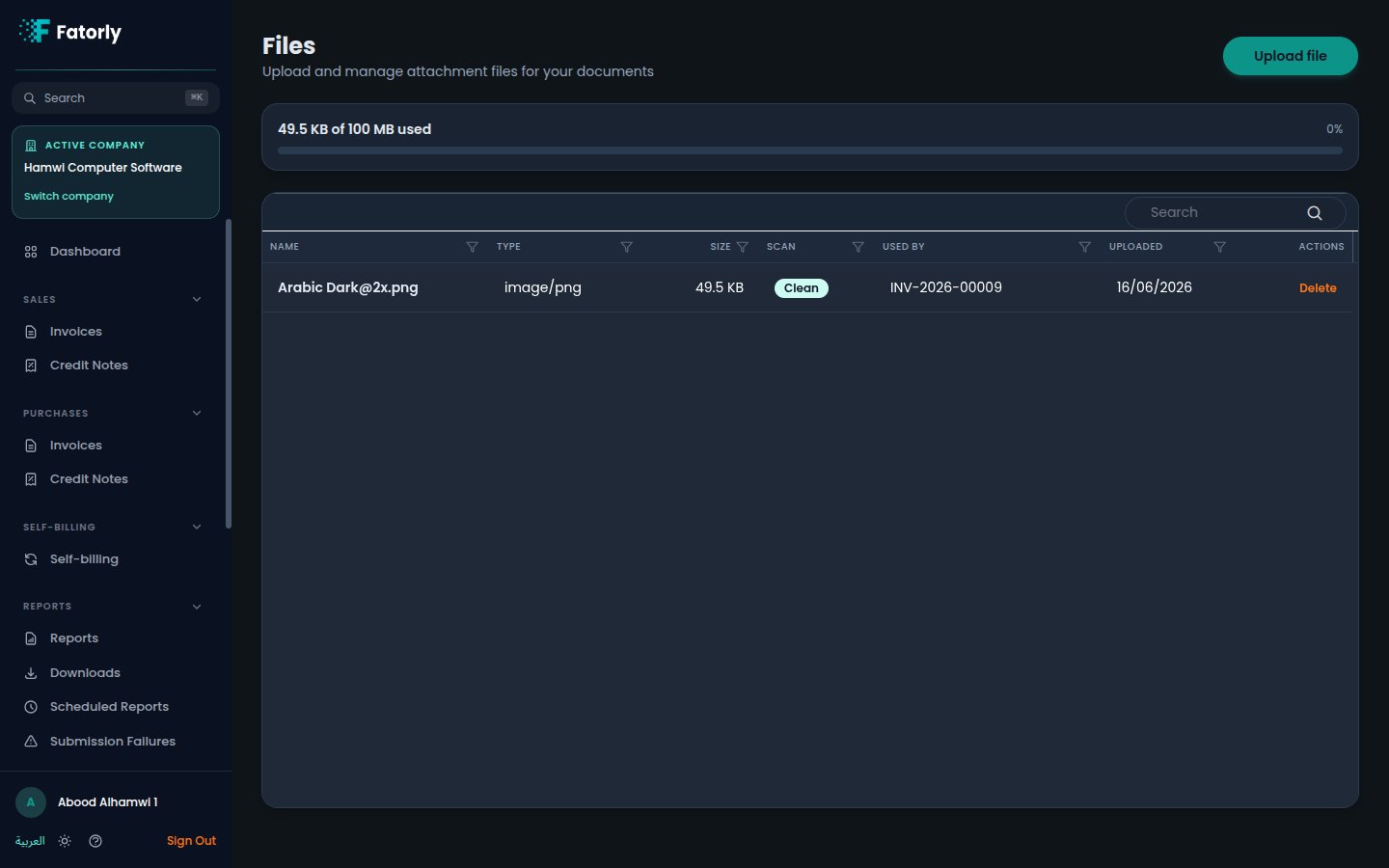
The **Files** page is your library of uploaded attachments. Upload supporting
documents once, then attach them to invoices from the editor — Fatorly keeps the
file, scans it, and tracks which document uses it. Open the page from **Master
Data → Files** in the sidebar.
 ## Storage usage
A bar near the top shows how much of your storage allowance you have used — for
example *49.5 KB of 100 MB used* with a percentage indicator. Keep an eye on it
as your library grows.
## The list
Each row is one uploaded file. The grid has these columns:
* **Name** — the file name (for example `Arabic Dark@2x.png`).
* **Type** — the file's MIME type (for example `image/png`).
* **Size** — the file size.
* **Scan** — the virus-scan status. A **Clean** badge means the file passed the
scan and is safe to attach.
* **Used by** — the document the file is currently attached to (for example
`INV-2026-00009`), or blank if it is not yet attached.
* **Uploaded** — the upload date.
* **Actions** — **Delete**.
Use the **Search** box to find a file by name, and select any column header to
sort.
## Upload a file
Select **Upload file** in the top-right.
Pick the file from your device. Fatorly stores it and runs a virus scan; the
**Scan** column shows the result.
## Attaching files to invoices
You don't have to start from this page to use a file. In the invoice editor,
open **References & Delivery → Attachments**, where you can either choose an
existing file from this library or upload a new one inline. When a file is
attached to a document, Fatorly generates a **public link** for that file so the
recipient can open it, and the document appears in the **Used by** column here.
The **Used by** column makes it easy to see which files are referenced by a
document before you delete them.
## Row actions
* **Delete** removes the file from your library. Remove a file from any document
that still references it first.
## Related
* [Create or Edit an Invoice](/en/invoicing/create-invoice) — attach files from
the editor's **References & Delivery → Attachments** section.
## Storage usage
A bar near the top shows how much of your storage allowance you have used — for
example *49.5 KB of 100 MB used* with a percentage indicator. Keep an eye on it
as your library grows.
## The list
Each row is one uploaded file. The grid has these columns:
* **Name** — the file name (for example `Arabic Dark@2x.png`).
* **Type** — the file's MIME type (for example `image/png`).
* **Size** — the file size.
* **Scan** — the virus-scan status. A **Clean** badge means the file passed the
scan and is safe to attach.
* **Used by** — the document the file is currently attached to (for example
`INV-2026-00009`), or blank if it is not yet attached.
* **Uploaded** — the upload date.
* **Actions** — **Delete**.
Use the **Search** box to find a file by name, and select any column header to
sort.
## Upload a file
Select **Upload file** in the top-right.
Pick the file from your device. Fatorly stores it and runs a virus scan; the
**Scan** column shows the result.
## Attaching files to invoices
You don't have to start from this page to use a file. In the invoice editor,
open **References & Delivery → Attachments**, where you can either choose an
existing file from this library or upload a new one inline. When a file is
attached to a document, Fatorly generates a **public link** for that file so the
recipient can open it, and the document appears in the **Used by** column here.
The **Used by** column makes it easy to see which files are referenced by a
document before you delete them.
## Row actions
* **Delete** removes the file from your library. Remove a file from any document
that still references it first.
## Related
* [Create or Edit an Invoice](/en/invoicing/create-invoice) — attach files from
the editor's **References & Delivery → Attachments** section.