> ## Documentation Index
> Fetch the complete documentation index at: https://docs.fatorly.com/llms.txt
> Use this file to discover all available pages before exploring further.
# Auditor: Select a Company
> Choose which linked company you want to review.
If your account has the **auditor** role, you sign in to a dedicated company
selector instead of a single company's dashboard. From here you choose which of
your linked companies to review.
 ## How it works
A company adds you as an auditor from their
[Company Auditors](/en/settings/company-auditors) settings. Once linked, the
company appears in your list.
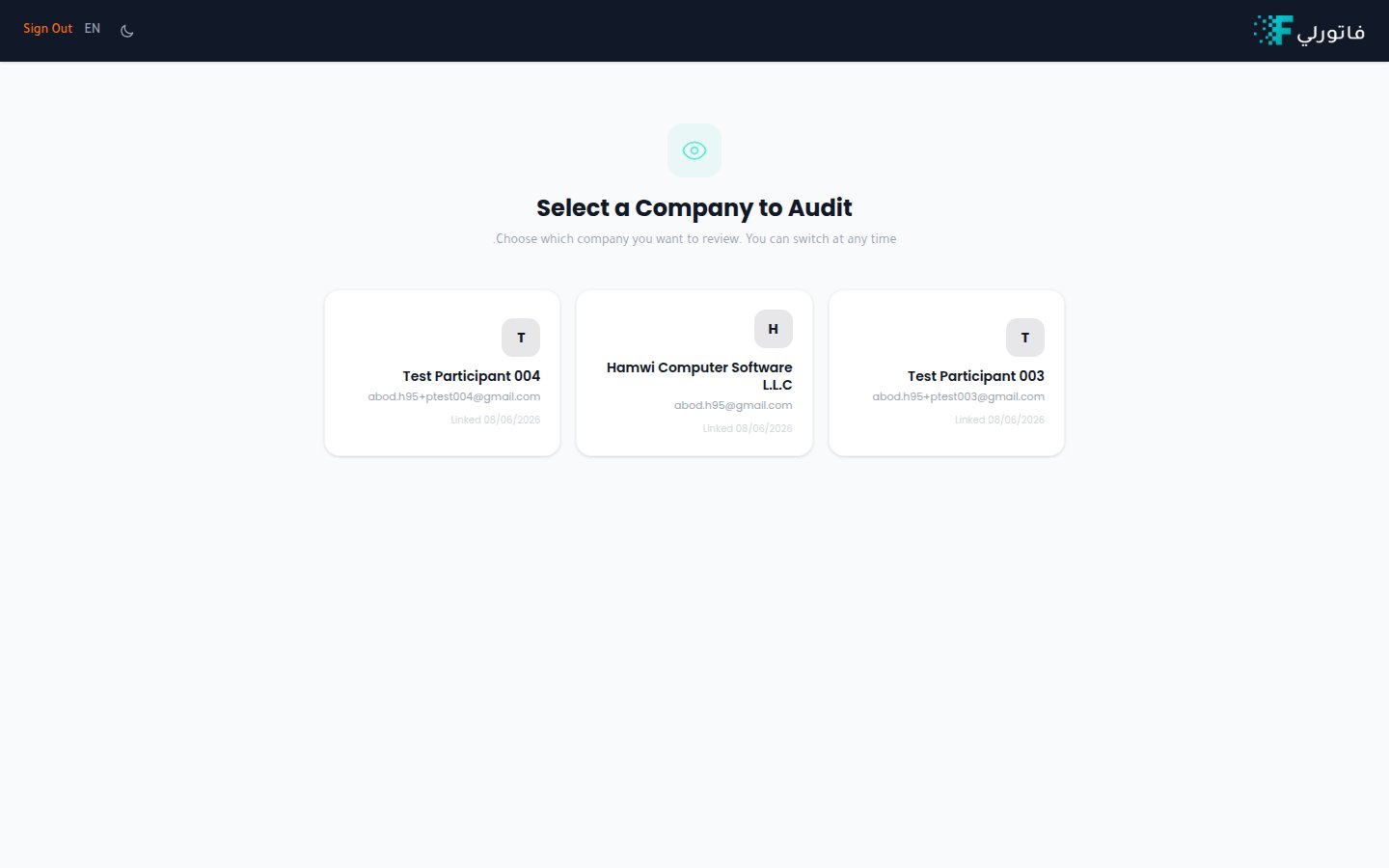
Sign in with your auditor credentials. You land on **Select a Company to Audit**.
Each card shows the company name, its account email, and the date you were
linked. Select a card to open that company in read-only mode.
Use **Switch Company** inside a company to return here and pick another.
The company selector screen is shown in English.
Don't see a company you expect? Ask them to confirm they've added your email under
**Settings → Auditors**.
## How it works
A company adds you as an auditor from their
[Company Auditors](/en/settings/company-auditors) settings. Once linked, the
company appears in your list.
Sign in with your auditor credentials. You land on **Select a Company to Audit**.
Each card shows the company name, its account email, and the date you were
linked. Select a card to open that company in read-only mode.
Use **Switch Company** inside a company to return here and pick another.
The company selector screen is shown in English.
Don't see a company you expect? Ask them to confirm they've added your email under
**Settings → Auditors**.